Guide
Reject candidates
Reject one or several candidates with a reason and an optional email.
When a candidate isn't moving forward, reject them with a reason. The reason stays with the application, and you decide each time whether the candidate gets an email. You can reject from the candidate's profile (Reject under Actions), by dragging their card to Rejected on the pipeline, or with R in Review mode.
Reject a candidate
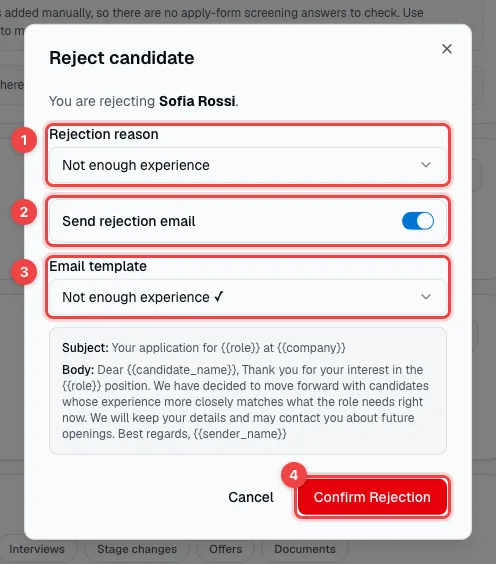
- Rejection reason — choose from your organization's list.
- Send rejection email — off by default. Turn it on to email the candidate.
- Email template — the template linked to the reason is picked for you, with a preview of the subject and text. Placeholders such as
{{candidate_name}}and{{role}}are replaced with the candidate's name and the vacancy when the email is sent. - Confirm Rejection — rejects the candidate (and sends the email, if it's on).
The candidate leaves the active stages and appears among the closed outcomes on the pipeline, with the reason. If they have no other open applications, their status changes to Inactive.
Reject several candidates at once
On the pipeline, tick the candidates' cards and click Reject in the action bar.
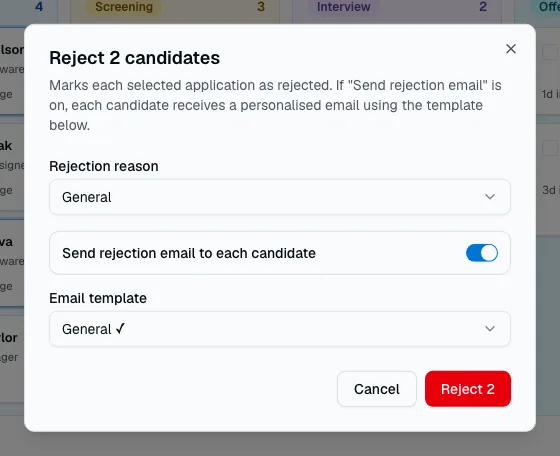
The same reason applies to everyone. With Send rejection email to each candidate on, each of them gets their own personalised email.
Rejection reasons
Owners and admins manage the list in Settings → Rejection reasons.
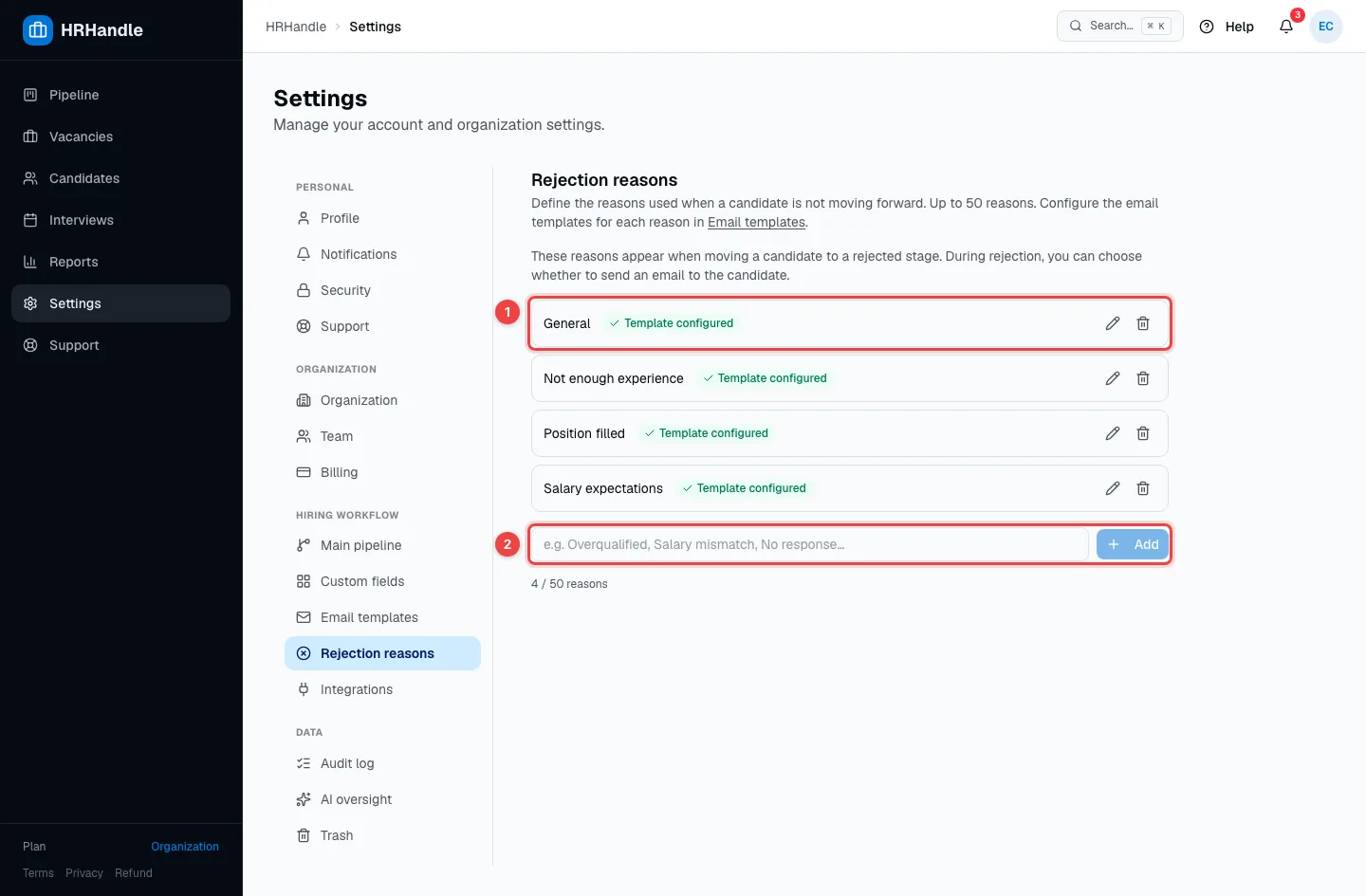
- A reason — Template configured means the reason has its own email template; otherwise the default rejection email is used. The pencil renames the reason and the bin deletes it.
- New reason — type a name and click Add. You can have up to 50 reasons.
You write the email for each reason in Settings → Email templates — see Email templates.