Guide
Add a candidate
Add a candidate by uploading a CV (AI fills in the details) or by hand.
Add a candidate yourself when you find someone outside your apply link: a referral, a LinkedIn contact, a CV someone emailed you. People who apply through your apply link are added automatically — see Share a vacancy. To add many people at once, see Import candidates.
Open the form
From the sidebar, click Candidates, then Add candidate. You'll find the same button on the Pipeline too.
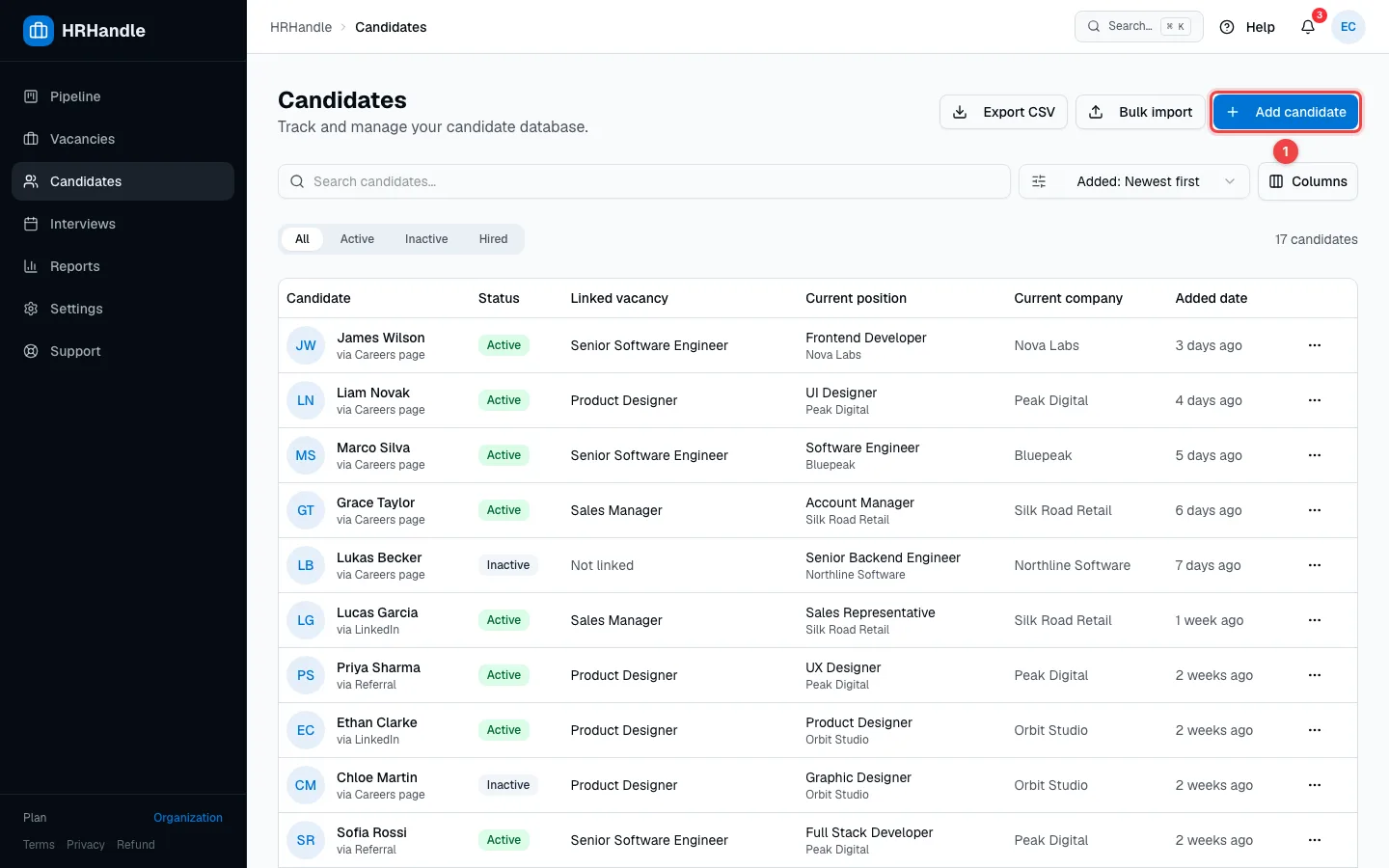
Step 1 — Choose how to add the candidate
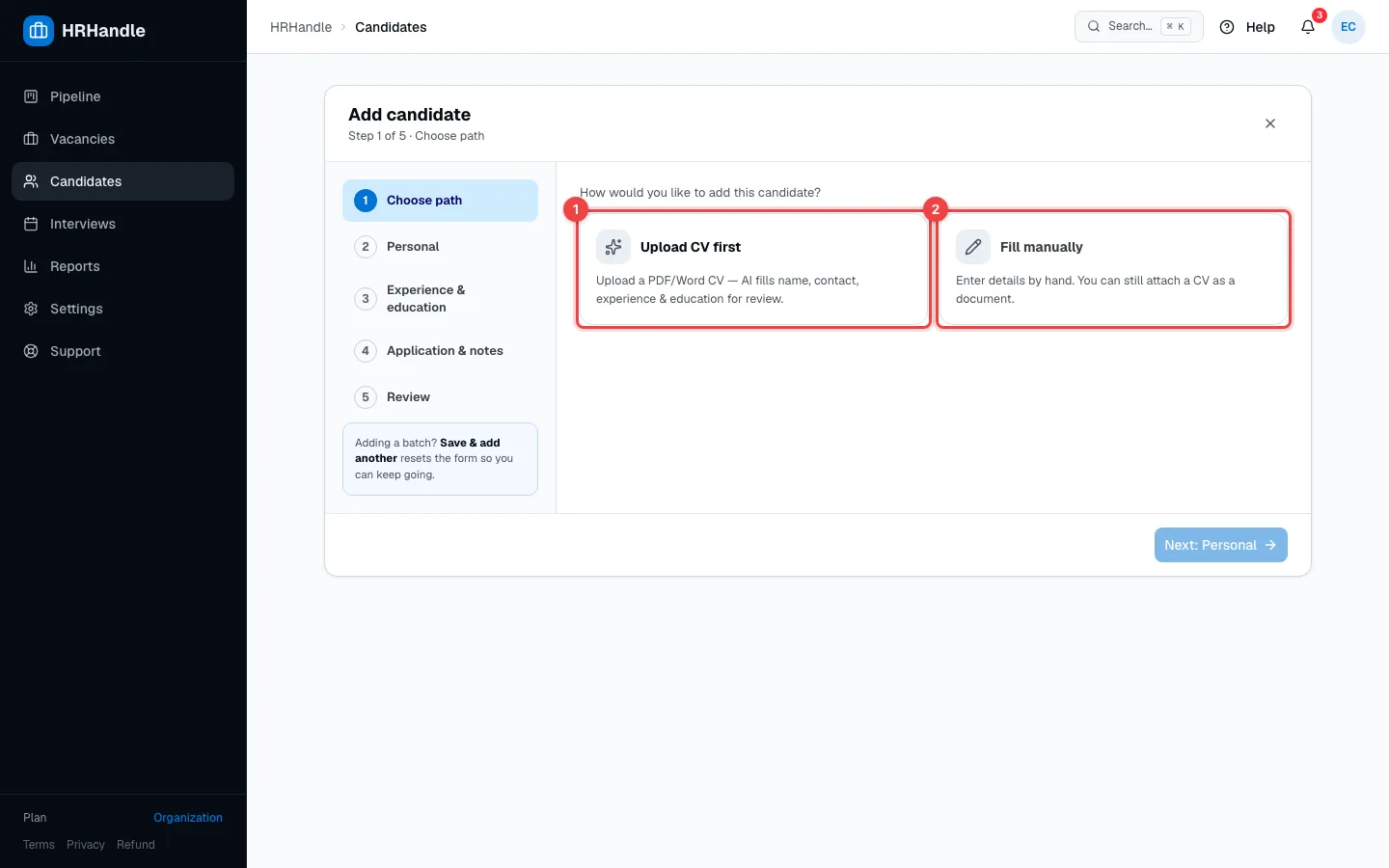
- Upload CV first — the AI reads the CV and fills in the form; you only check it.
- Fill manually — enter the details yourself. You can still attach a CV to the candidate later.
Then click Next: Personal.
Step 2 — Personal details
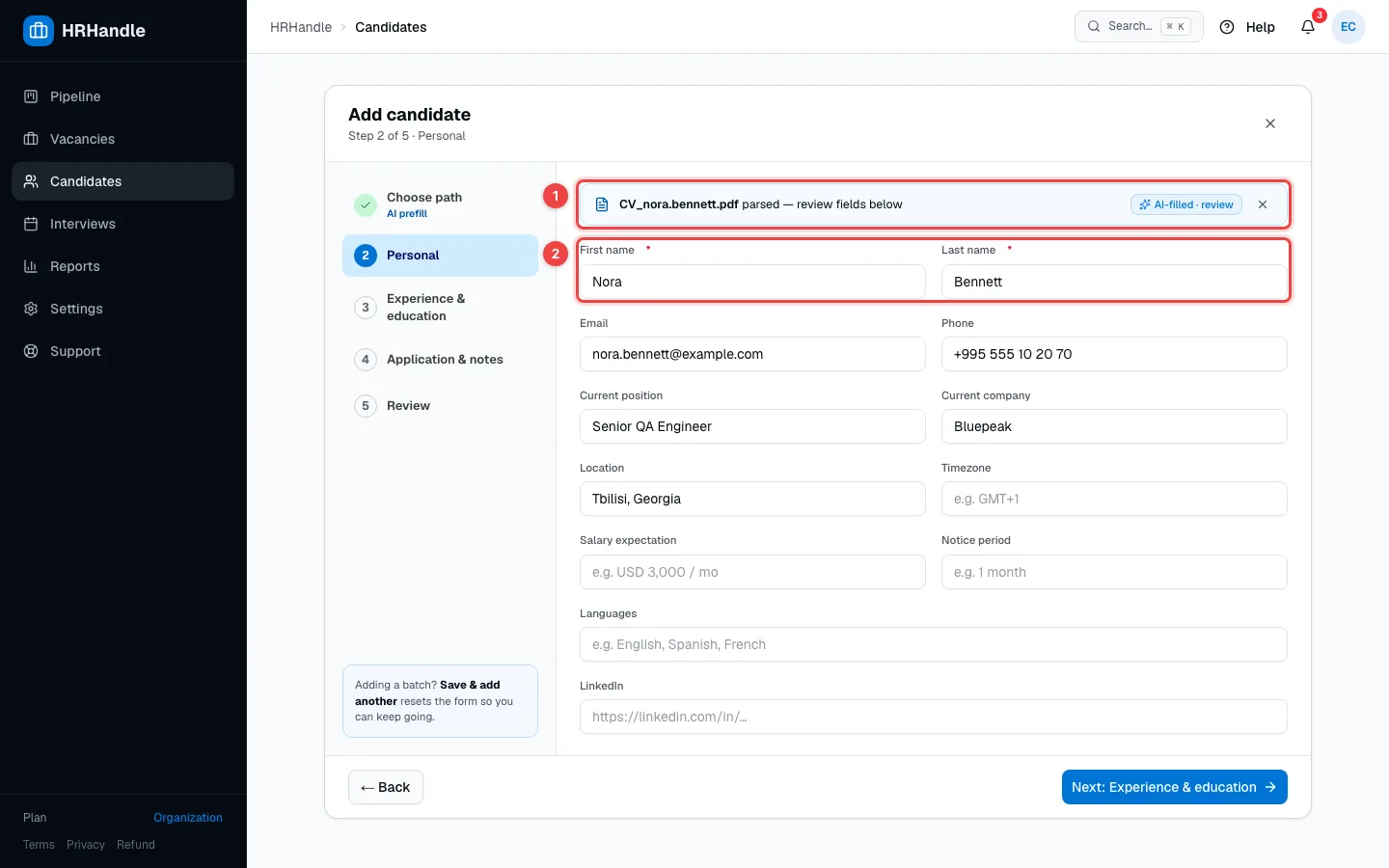
- The CV — a PDF or Word file of up to 10 MB. Fields the AI filled in are marked AI-filled · review. The × removes the file.
- First name and Last name (required), then email, phone, current position and company, location, timezone, salary expectation, notice period, languages and LinkedIn.
The AI is fast, but it can make mistakes — check every field it filled in before you continue.
Step 3 — Experience & education
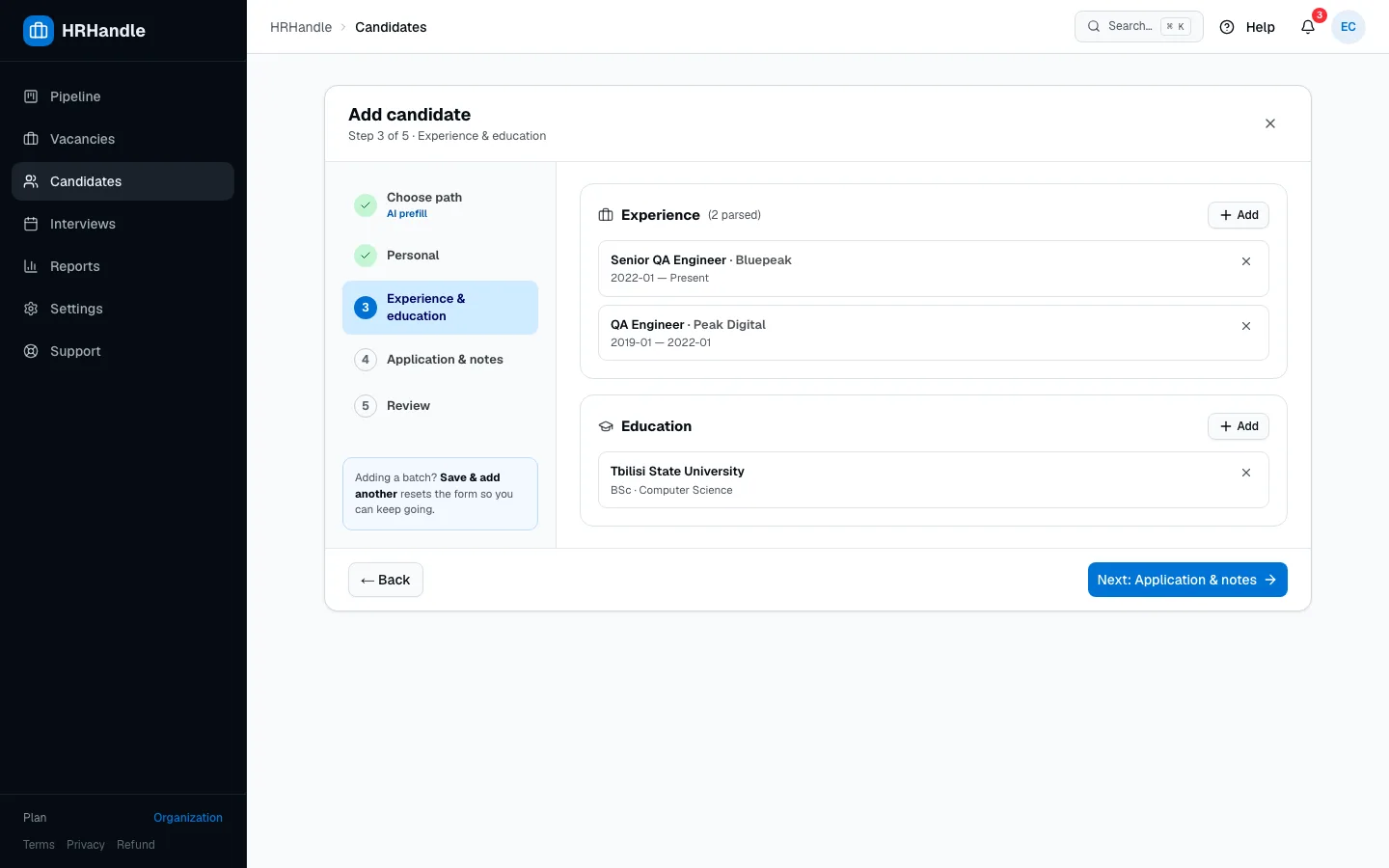
Add, change or remove jobs and degrees here. With Fill manually, you add them yourself.
Step 4 — Application & notes
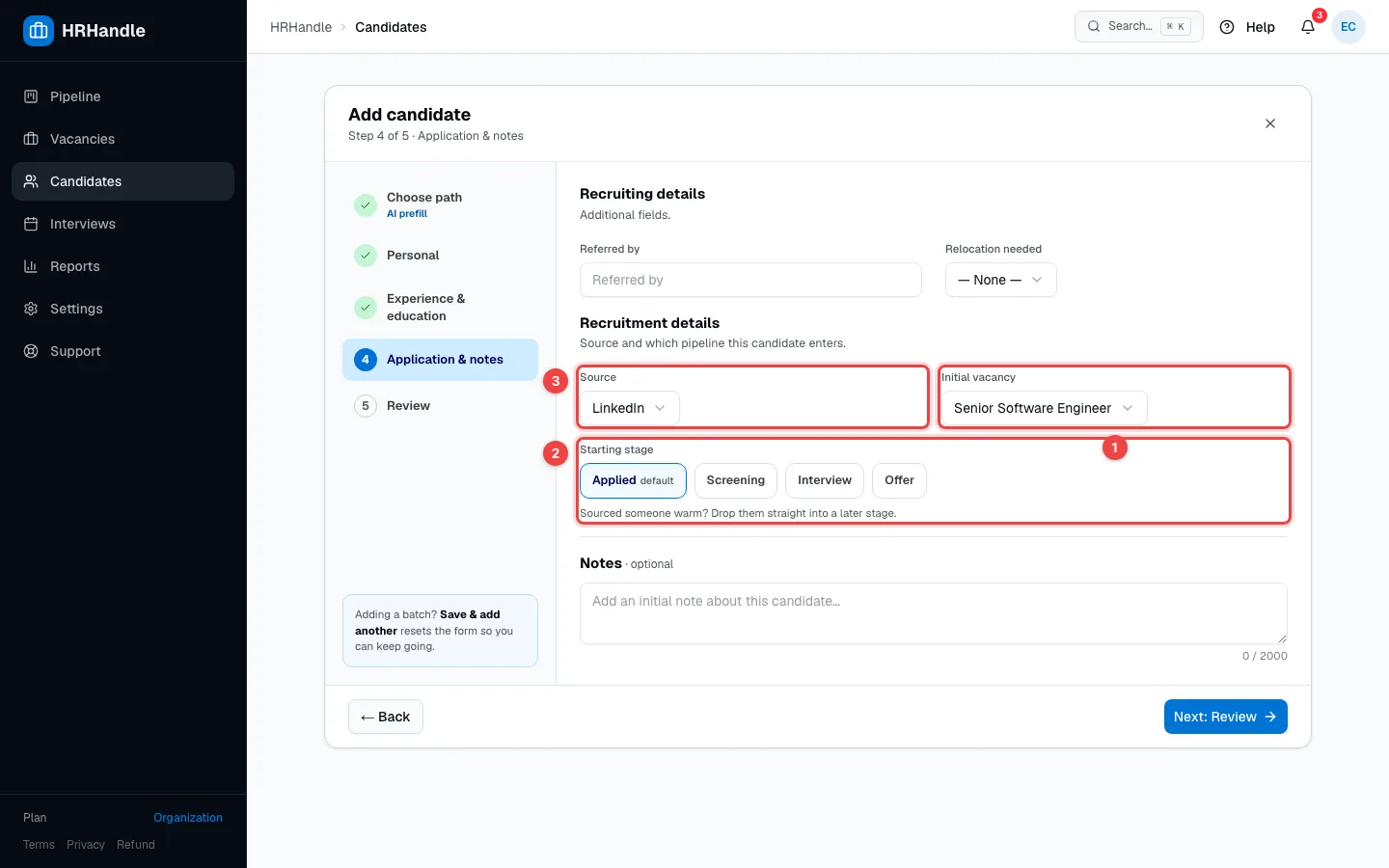
Your organization's own fields for candidates appear at the top (see Custom fields).
- Initial vacancy — adds the candidate straight into a vacancy's pipeline. Leave it empty to add them to your candidate database only.
- Starting stage — Applied by default. Choose a later stage for someone you've already spoken to.
- Source — where the candidate came from, for example LinkedIn or a referral. It feeds the Sources report.
Below, Notes lets you add a first note about the candidate.
Step 5 — Review and save
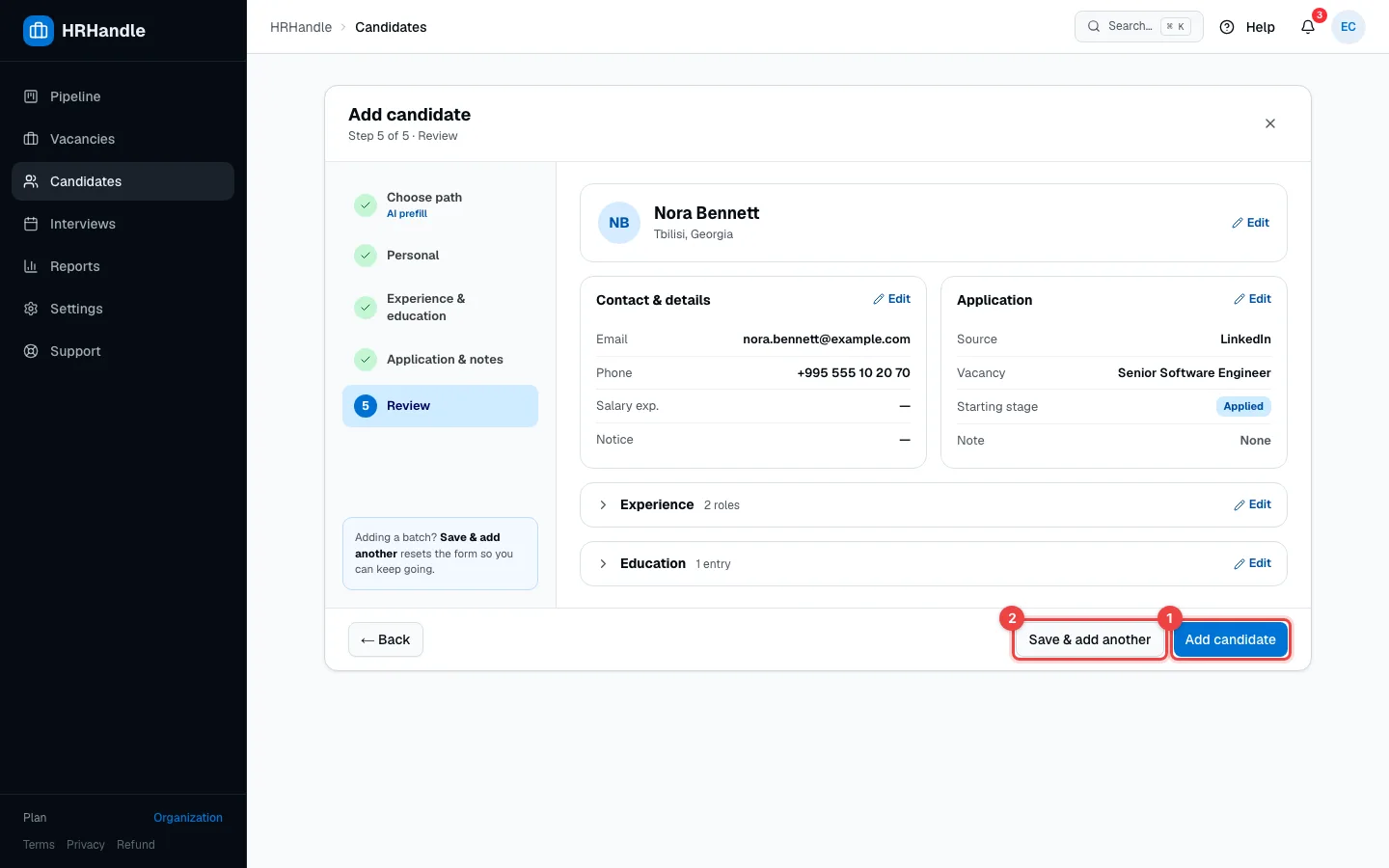
- Add candidate — saves the candidate and opens their profile.
- Save & add another — saves and starts a fresh form, for when you're adding several people.
HRHandle attaches the CV to the candidate's Documents and, if you chose a vacancy, adds them to its pipeline at the stage you picked. A candidate can be active in up to 5 vacancies at a time, and every candidate counts toward your plan's candidate limit. Next, see The candidate profile.