Guide
Schedule interviews
Book interviews with Google Meet, Zoom or Teams links, or let candidates book a time through Calendly.
Schedule interviews from the Interviews page, from a candidate's profile (Schedule under Actions), from the pipeline's action bar or with S in Review mode. Every interview, upcoming and past, is listed on the Interviews page.
The Interviews page
Open Interviews in the sidebar.
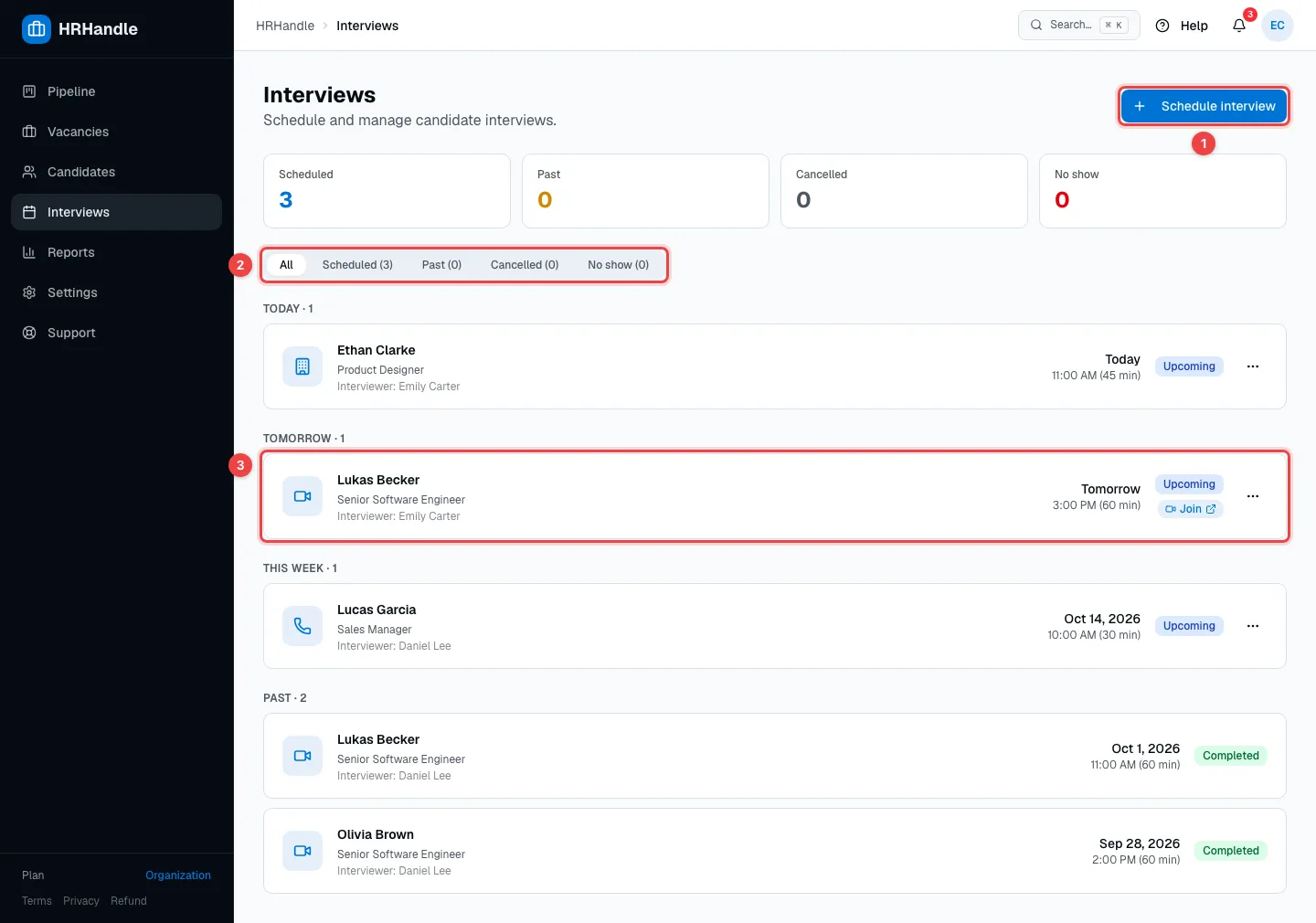
- Schedule interview — opens the scheduling form.
- Filters — All, Scheduled (still to come), Past (the time has passed but nobody recorded how it went), Cancelled and No show. The counters above show the same numbers.
- An interview — the candidate, vacancy and interviewer, the date and time, and the status. Join opens the meeting link. Interviews are grouped into today, tomorrow, this week, later and past.
An interview whose time has passed without an outcome says Past due — mark complete or no-show, so it doesn't stay open forever.
Schedule an interview
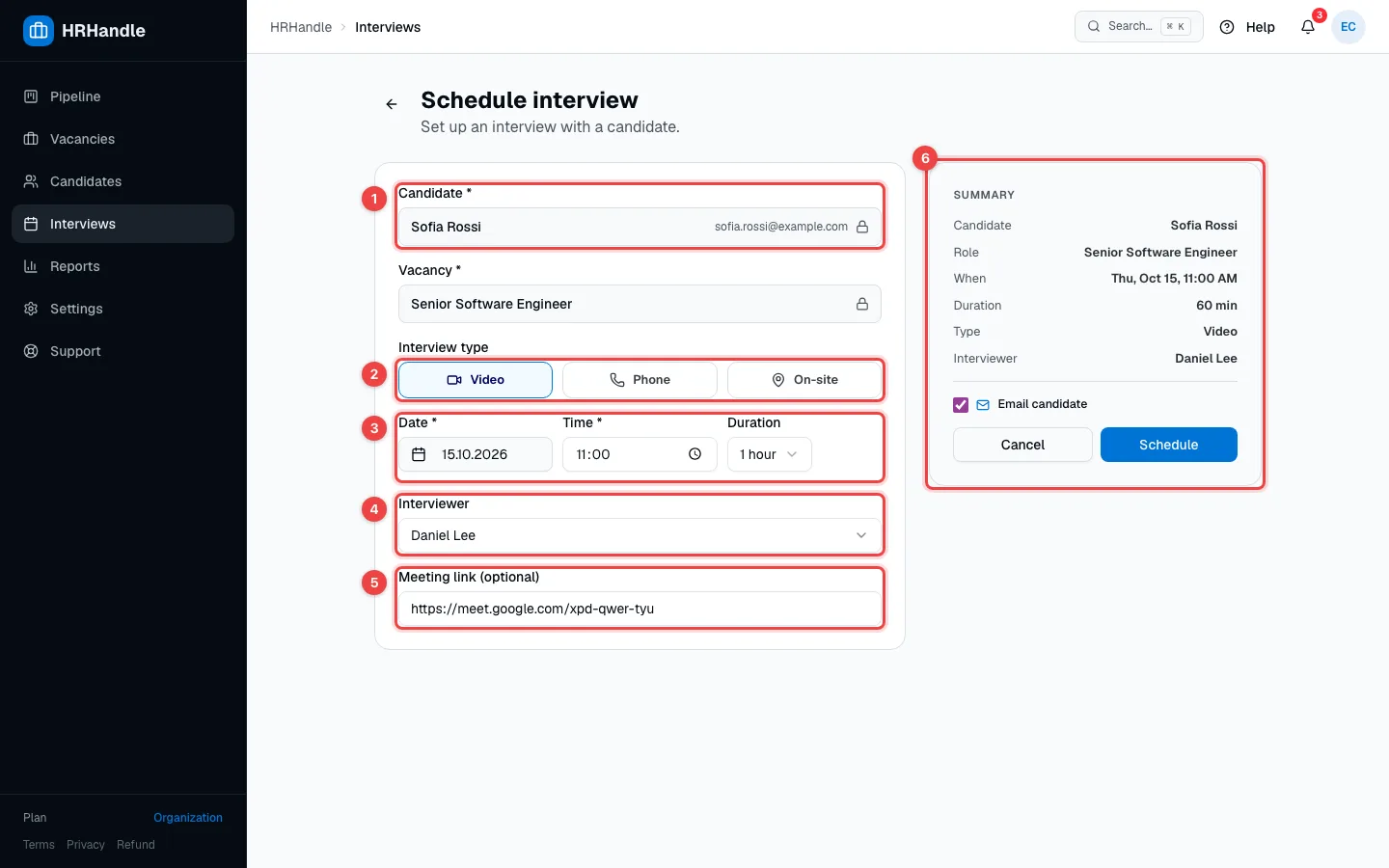
- Candidate — when you start from a candidate, the candidate and the vacancy are filled in. Otherwise choose the candidate, then one of the vacancies they're being considered for.
- Interview type — Video, Phone or On-site.
- Date, Time and Duration — HRHandle suggests the next slot in working hours.
- Interviewer — the teammate who runs the interview.
- Meeting link (optional) — for a video interview, paste a Zoom, Teams or Google Meet link. If you've connected Google Calendar, Zoom or Microsoft Teams, you can let HRHandle create the meeting instead — see Integrations.
- Summary — check the details. Tick Email candidate to send the candidate an invitation with the date, time and link, then click Schedule.
You and the interviewer get a notification, and the interviewer gets a reminder the day before. The interview also appears on the candidate's stage card, with Join and Reschedule.
Let the candidate pick a time with Calendly
If your organization has connected Calendly (see Integrations), the candidate's profile has a Calendly link button under Actions.
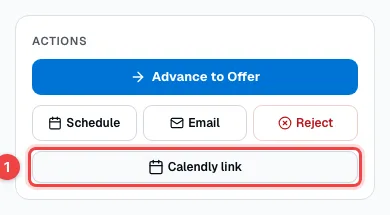
- Calendly link — creates the candidate's booking link for this vacancy.
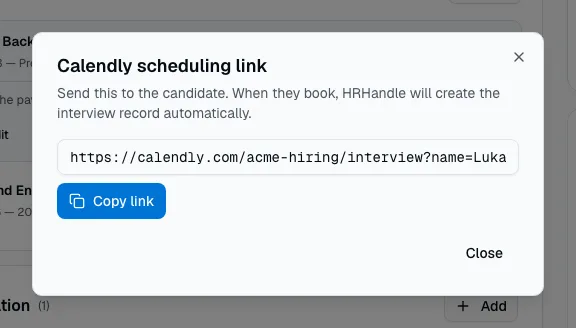
Click Copy link and send the link to the candidate in your own email or message. When they pick a time, the interview appears on their profile and on the Interviews page by itself. If they cancel in Calendly, the interview is cancelled in HRHandle as well.
Reschedule, cancel or record the outcome
Click ⋯ next to an interview on the Interviews page.
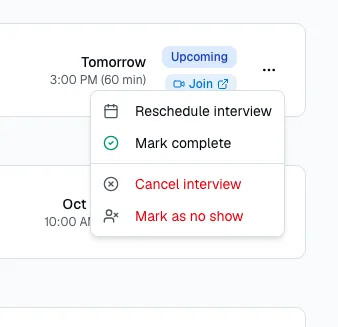
- Reschedule interview — pick a new date, time and duration, and choose whether to email the candidate the new time.
- Mark complete — the interview took place.
- Cancel interview — it won't take place. A meeting that HRHandle created in Google Calendar or Zoom is removed too.
- Mark as no show — the candidate didn't turn up.
After the interview, record what you thought of the candidate in their assessment — see Assessments and scorecards.