Guide
Email templates
Edit the emails candidates receive and turn on automatic status updates.
HRHandle emails candidates at the key moments: when they apply, when you invite them to an interview, when they move forward, when you reject them and when you send an offer. Every email comes with sensible default text in your organization's language. Owners and admins can rewrite them in Settings → Email templates.
Edit an email
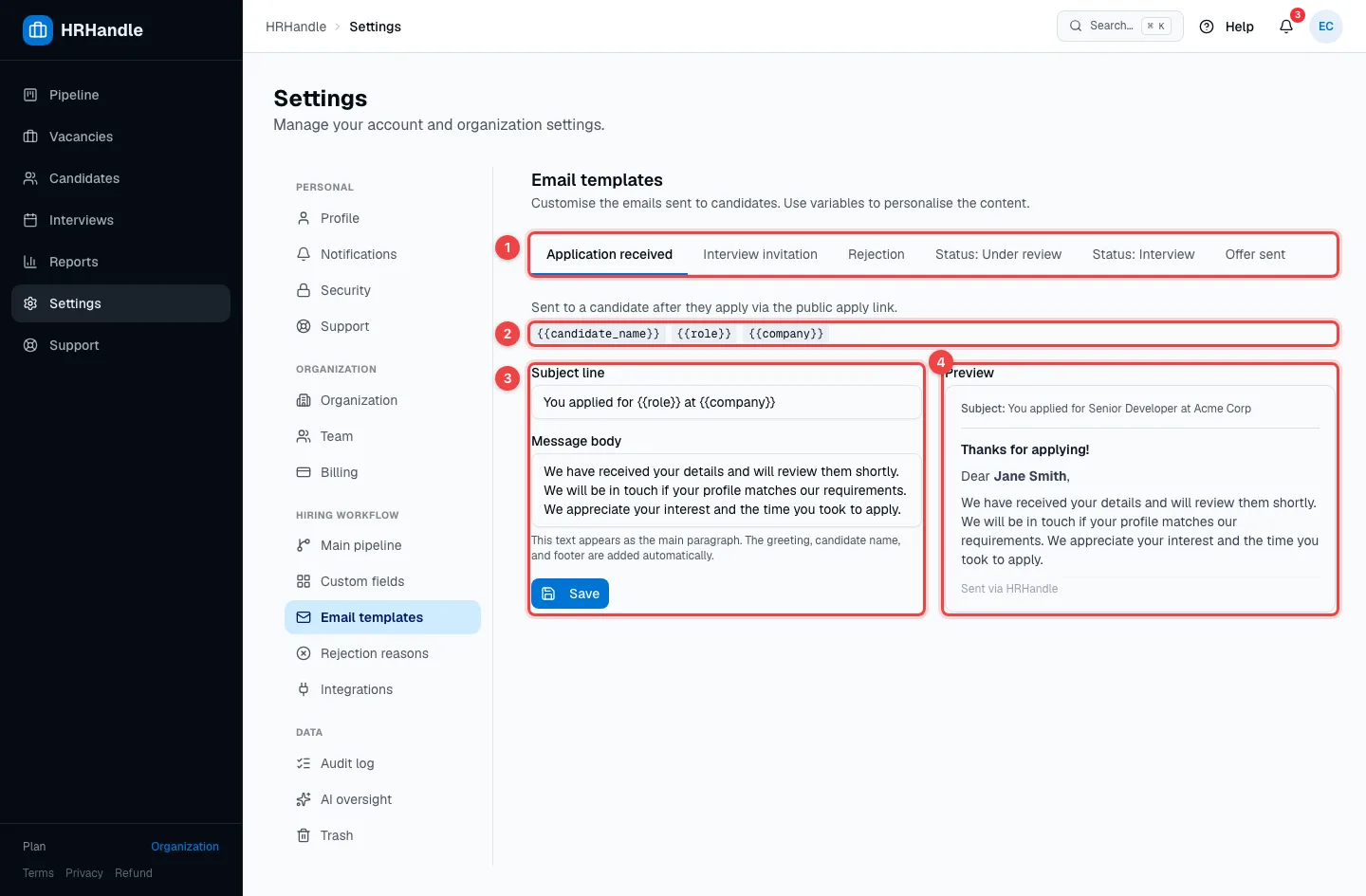
- The emails — Application received, Interview invitation, Rejection, Status: Under review, Status: Interview and Offer sent. Under the tabs, a sentence says when the selected email is sent.
- Placeholders — words in double braces are filled in for each candidate when the email is sent:
{{candidate_name}},{{role}}(the vacancy),{{company}}and, depending on the email, the interview date and link or the offer link. - Subject line and Message body — write your own text. The greeting, the candidate's name and the footer are added automatically. Click Save; Reset to default brings back the original text.
- Preview — the email as the candidate will see it, with sample details.
Automatic stage emails
Status: Under review and Status: Interview go out automatically when you move a candidate forward to Screening or Interview. They're off until you switch them on.
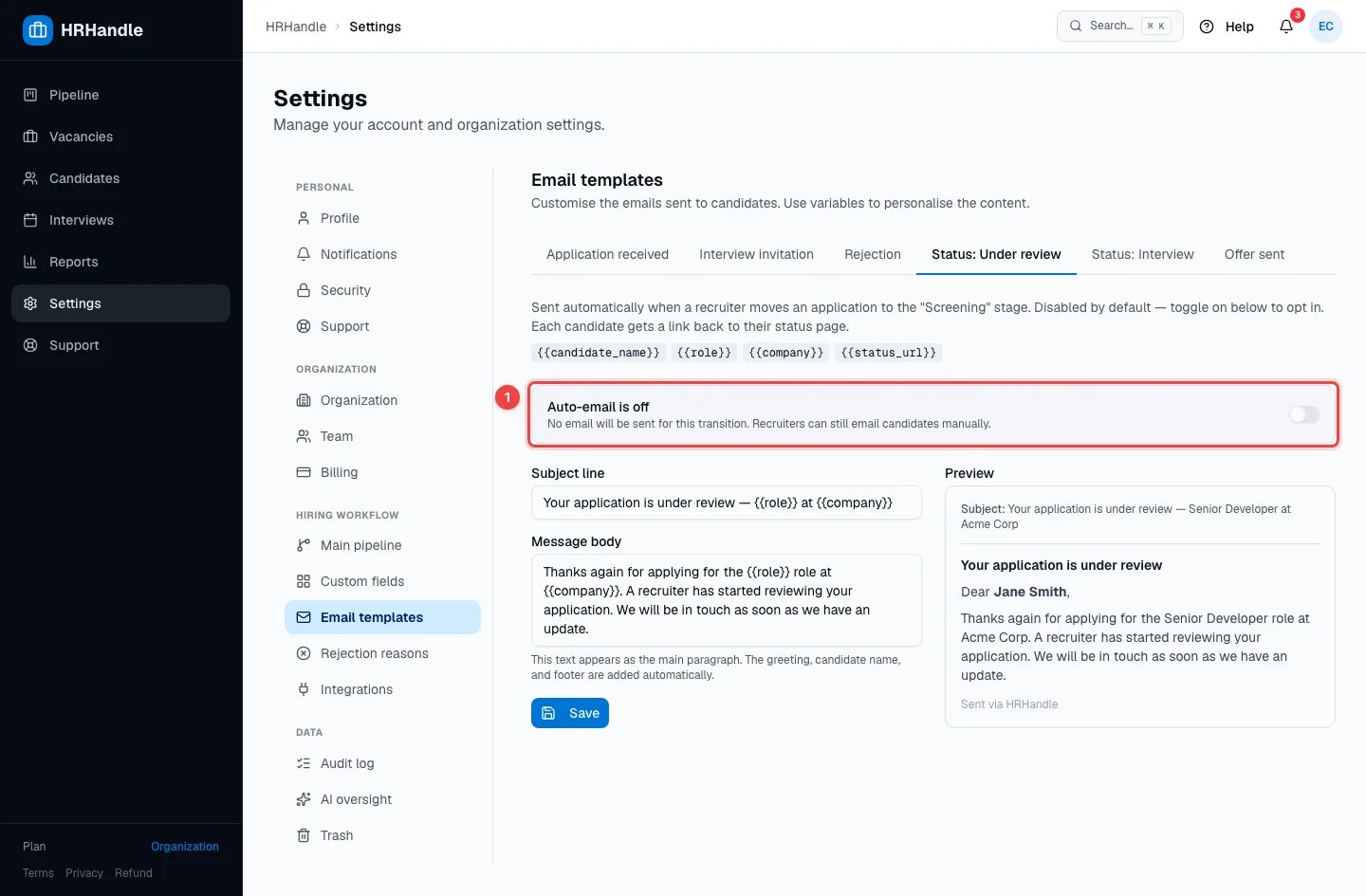
- Auto-email is off / Auto-email is on — the switch for this email. Moving a candidate back to an earlier stage never sends it.
Rejection emails
You can have a different rejection email for each rejection reason.
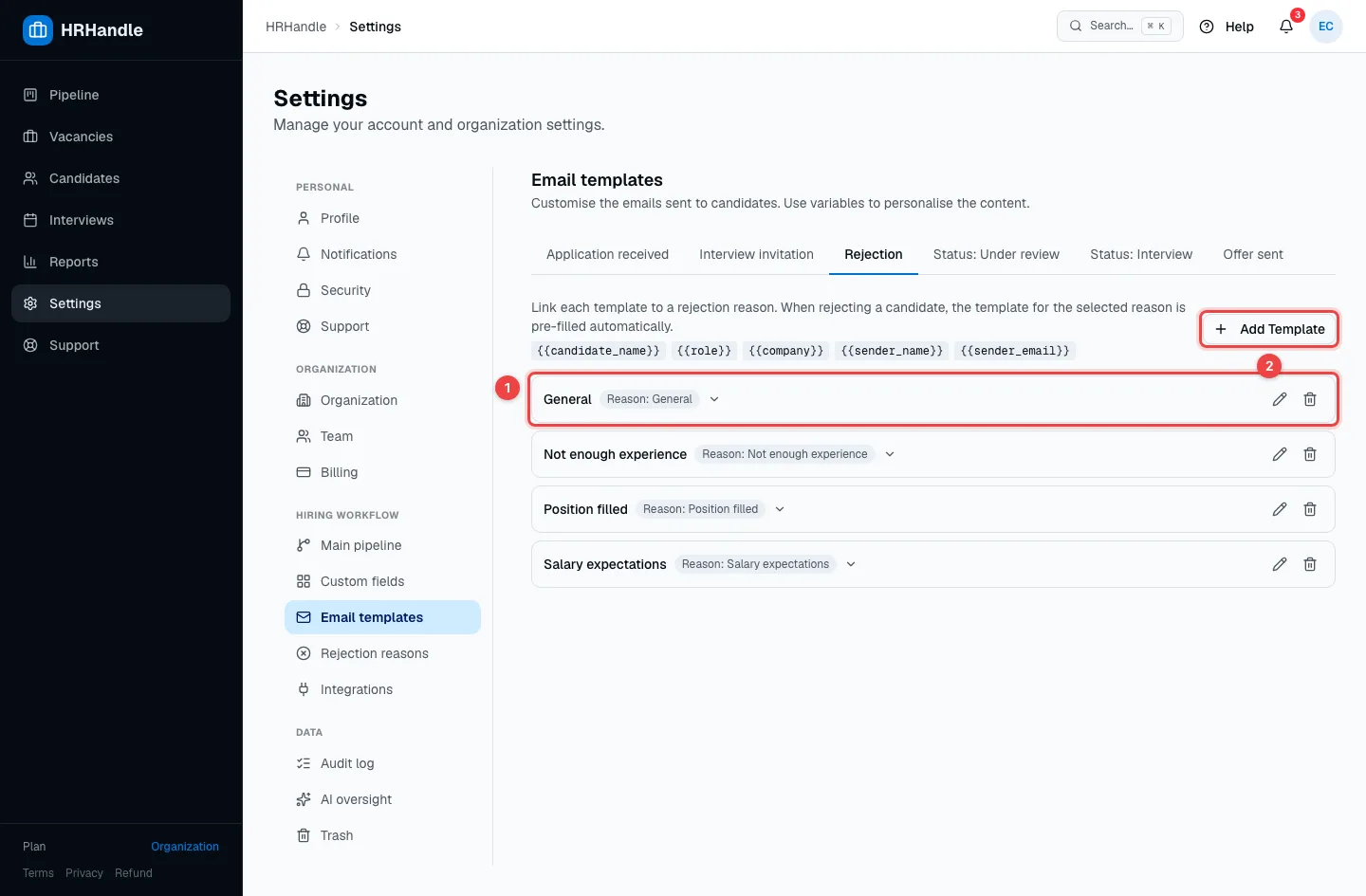
- A template — its name and the reason it's linked to. Click it to see the text; the pencil edits it and the bin deletes it.
- Add Template — give it a name, link it to a reason, and write the subject and text.
When you reject a candidate and choose a reason, HRHandle picks that reason's template for you — see Reject candidates.