Guide
Notifications, Slack and Teams
In-app notifications, @mentions, and alerts in your Slack or Microsoft Teams channels.
HRHandle keeps your team up to date in three ways: notifications under the bell in the header, emails, and messages in your team's Slack or Microsoft Teams channel.
Who is notified about what
| Notification | Who gets it |
|---|---|
| New application through an apply link | The owner and admins |
| You were @mentioned in a note | The person mentioned |
| Interview scheduled | The person who scheduled it and the interviewer |
| Interview reminder, the day before | The interviewer — or the owner and admins if nobody is assigned |
| Offer accepted or declined | The owner and admins |
| Candidate hired | The owner and admins |
| Candidate withdrew their application — with their reason, if they gave one | The owner and admins |
| A teammate was invited | The owner and admins, except whoever sent the invitation |
| The plan's candidate limit is reached | The owner and admins |
| AI Fit Analysis is ready | The person who asked for it |
Click the bell to see your notifications (see Find your way around). Each person decides in Settings → Notifications which ones appear under the bell and which also come by email — see Your profile and security. Emails go out straight away, one per event.
Slack and Microsoft Teams
Send hiring news to a channel your team already reads. Owners and admins open Settings → Integrations and click Configure → next to Slack & Microsoft Teams notifications.
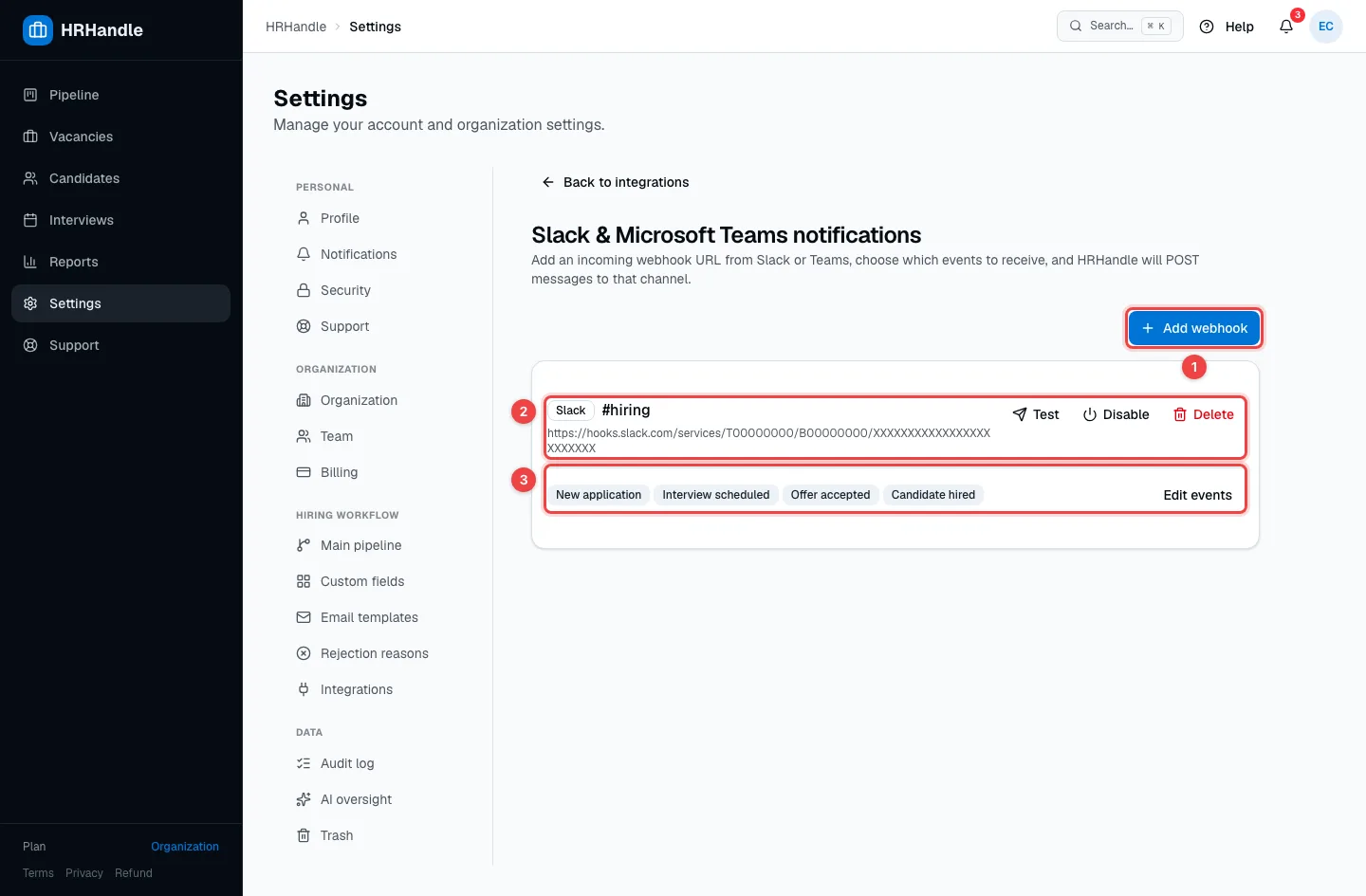
- Add webhook — connect another channel. You can connect as many channels as you like.
- A connected channel — Test posts a test message to it, Disable pauses it and Delete disconnects it.
- Events — what the channel receives. Click Edit events to change them.
Connect a channel
Click Add webhook.
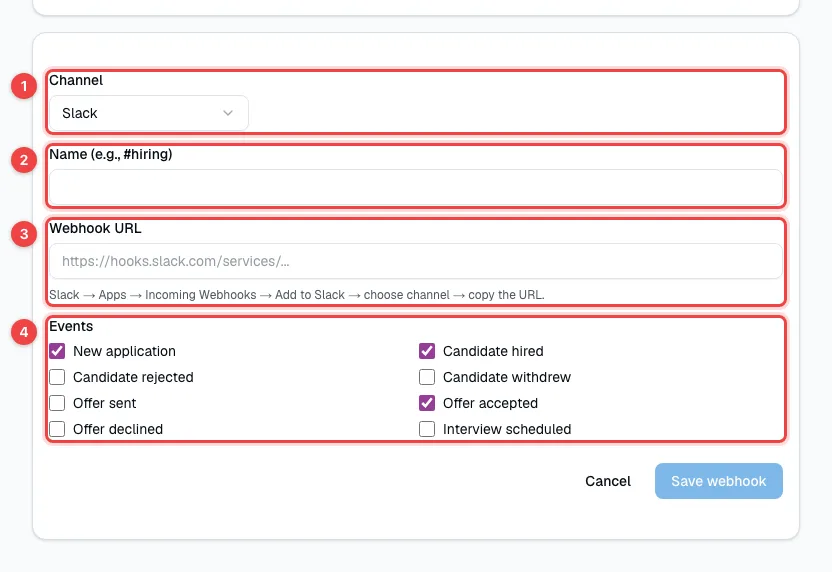
- Channel — Slack or Microsoft Teams.
- Name (e.g., #hiring) — so you recognise the channel in this list.
- Webhook URL — the channel's incoming-webhook address. The line under the field shows where to find it. In Slack it's an Incoming Webhooks app; in Teams, open the channel's ⋯ menu → Workflows and choose "Post to a channel when a webhook request is received".
- Events — tick what to post: new applications, hires, rejections, withdrawals, offers sent, accepted and declined, and scheduled interviews.
Click Save webhook, then Test to check that the message arrives.
This is separate from the Microsoft connection in Integrations: that one creates Teams meetings for interviews, this one posts messages to a channel.