Guide
Integrations
Connect Google, Microsoft, Zoom, Calendly, LinkedIn, Slack and Teams.
Connect the tools your team already uses, in Settings → Integrations. Calendar and video-meeting accounts are personal: each person connects their own, and HRHandle then creates the meeting for every video interview they schedule. Your company's LinkedIn page, Slack or Teams channels and Calendly are connected once for the whole organization, by the owner or an admin.
Connect your calendar and meetings
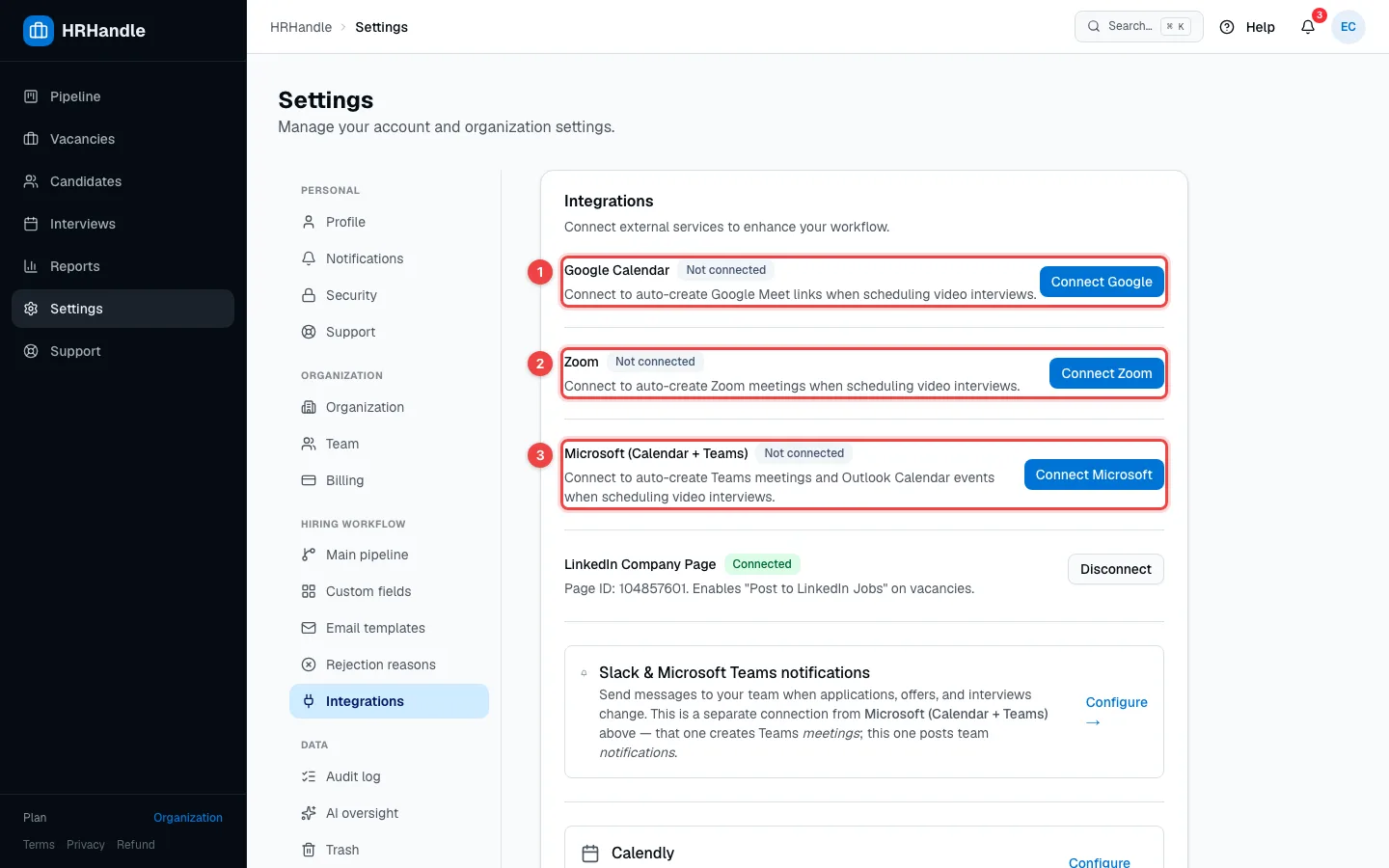
- Google Calendar — click Connect Google and allow access. Video interviews then get a Google Meet link and an event in your Google Calendar, with the candidate invited.
- Zoom — click Connect Zoom. Video interviews get a Zoom meeting link.
- Microsoft (Calendar + Teams) — click Connect Microsoft. Video interviews get a Teams meeting and an event in your Outlook calendar.
Once you're connected, the scheduling form lets you choose how to create the meeting — Auto Meet, Auto Zoom, Auto Teams or Manual for a link you paste yourself (see Schedule interviews). If you connect more than one, Default for video interviews decides which one is used first.
When you cancel an interview, HRHandle also removes the meeting it created. To disconnect an account, click Disconnect next to it.
Your company's LinkedIn page
Connect your company's LinkedIn page, and every vacancy gets a Post to LinkedIn Jobs button — see Share a vacancy.

- LinkedIn Company Page — owners and admins enter the page's numeric ID and click Connect. The ID is in the address of your page's admin view: linkedin.com/company/ID/admin/. Once it's connected, the page ID is shown here, and Disconnect removes it. Other teammates see whether the page is connected.
Slack and Microsoft Teams notifications
To post hiring news to a Slack or Teams channel, owners and admins click Configure → under Slack & Microsoft Teams notifications. That's a separate connection for the whole organization — see Notifications, Slack and Teams.
Calendly
With Calendly, candidates pick their interview time themselves. Owners and admins click Configure → under Calendly, then Connect Calendly, and sign in to Calendly.
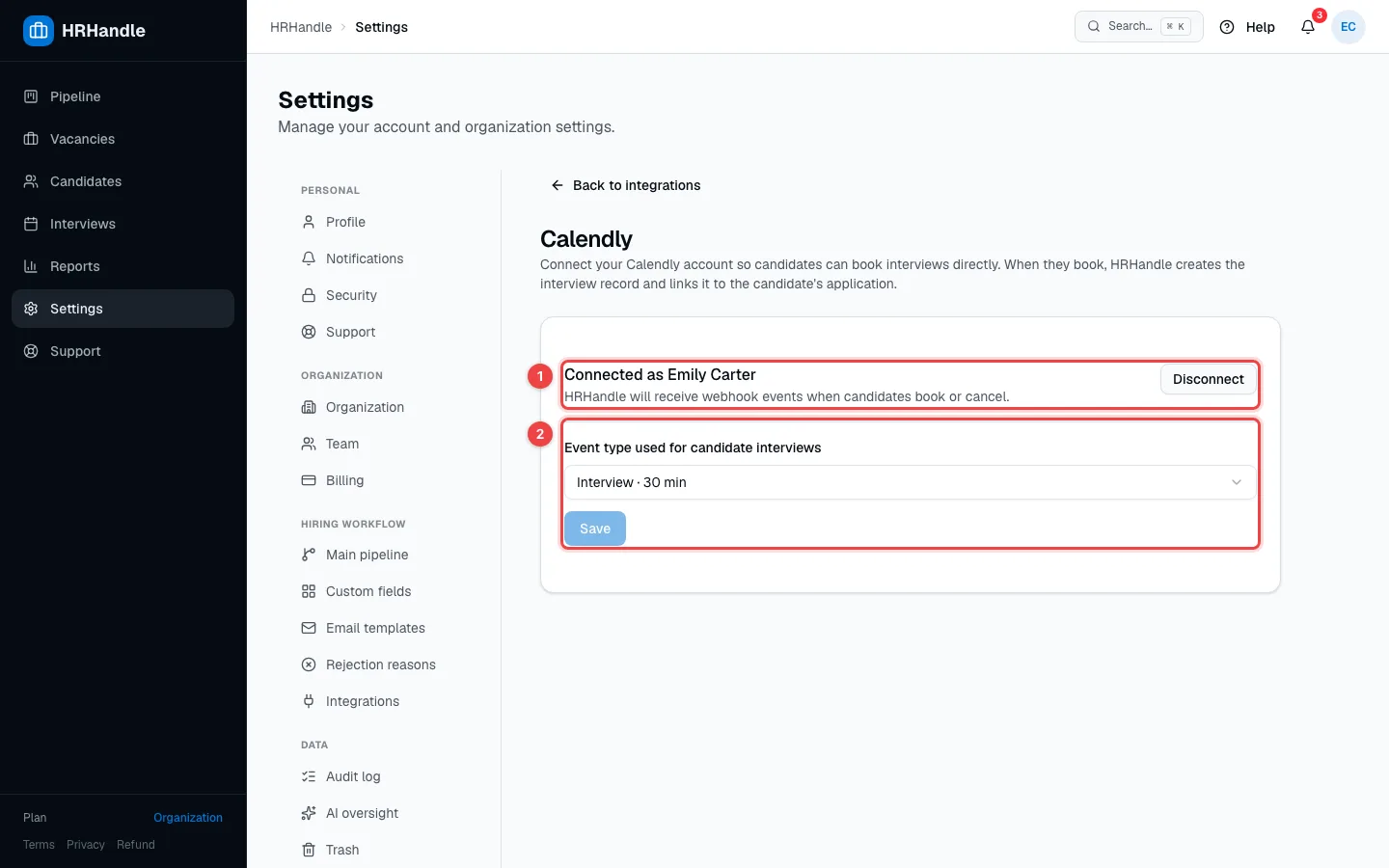
- Connected as — the Calendly account HRHandle uses. Disconnect removes the connection.
- Event type used for candidate interviews — pick one of your Calendly event types and click Save. Candidates book this one.
After that, anyone on the team can send a candidate a booking link from their profile — see Schedule interviews.