Guide
Import candidates from Excel or CSV
Bring in many candidates at once from a spreadsheet.
Moving from spreadsheets or another system? Import your candidates in one go. HRHandle checks every row before anything is created, so you can fix mistakes first. Owners and admins can import.
Step 1 — Upload your file
From the sidebar, click Candidates, then Bulk import.
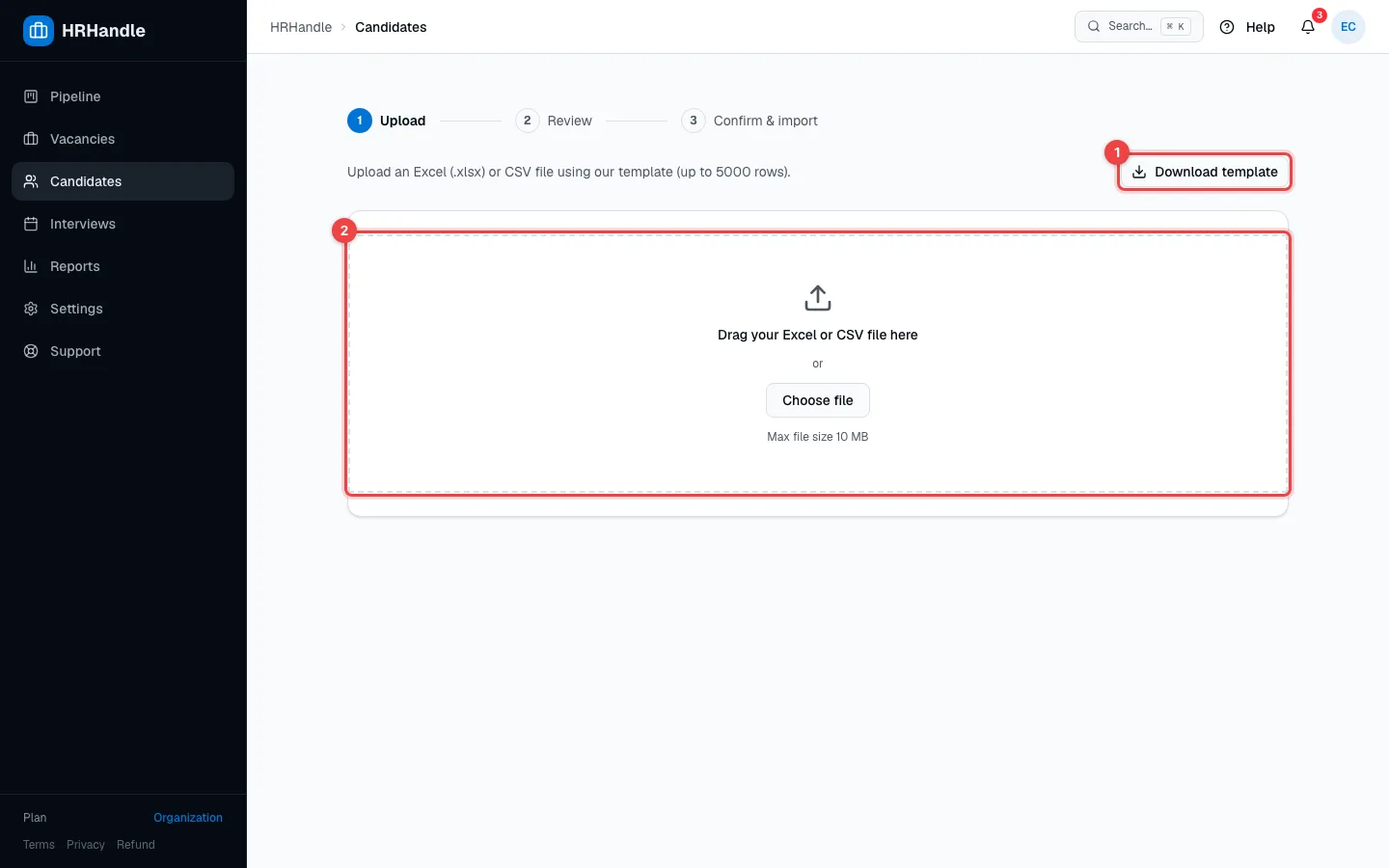
- Download template — an Excel file with the right columns. Fill it in in Excel, Numbers or Google Sheets.
- The upload area — drop your file here or click Choose file. You can upload the Excel template (.xlsx) or a CSV file with the same header row.
Only first name and last name are required; email and the other columns are optional. A file can have up to 5,000 rows and be up to 10 MB.
Step 2 — Review and fix
HRHandle checks every row and puts the ones with problems at the top.
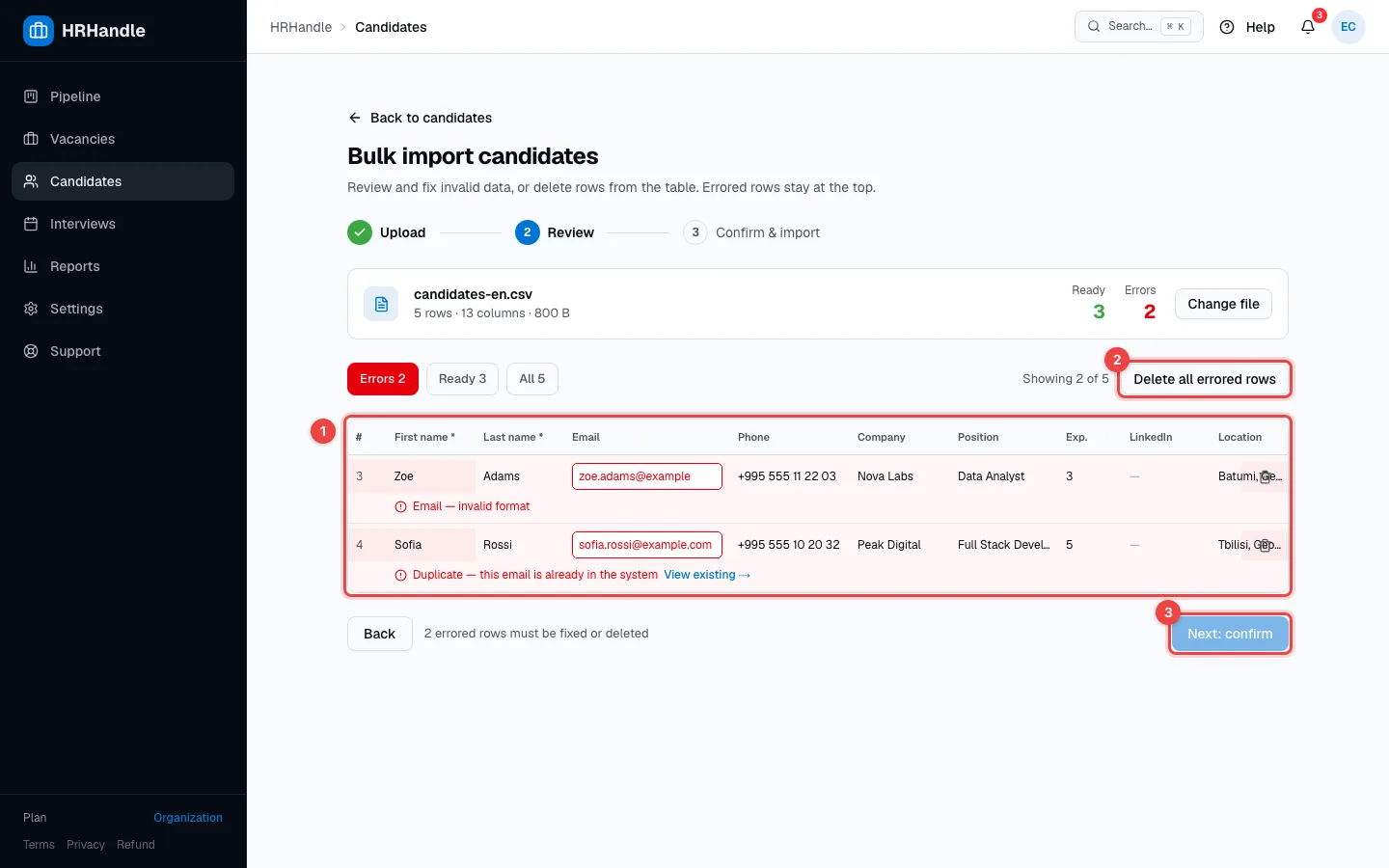
- The rows — every problem is highlighted with the reason: an invalid email, phone or LinkedIn address, or a duplicate — an email that already belongs to a candidate in your organization, or that appears twice in the file. Click any cell to fix it, or delete the row. The Ready and Errors counters update as you go.
- Delete all errored rows — removes every row that still has a problem.
- Next: confirm — becomes available once no errors are left.
Your changes are saved as you work, so you can refresh the page or come back to the import within 24 hours.
Step 3 — Confirm and import
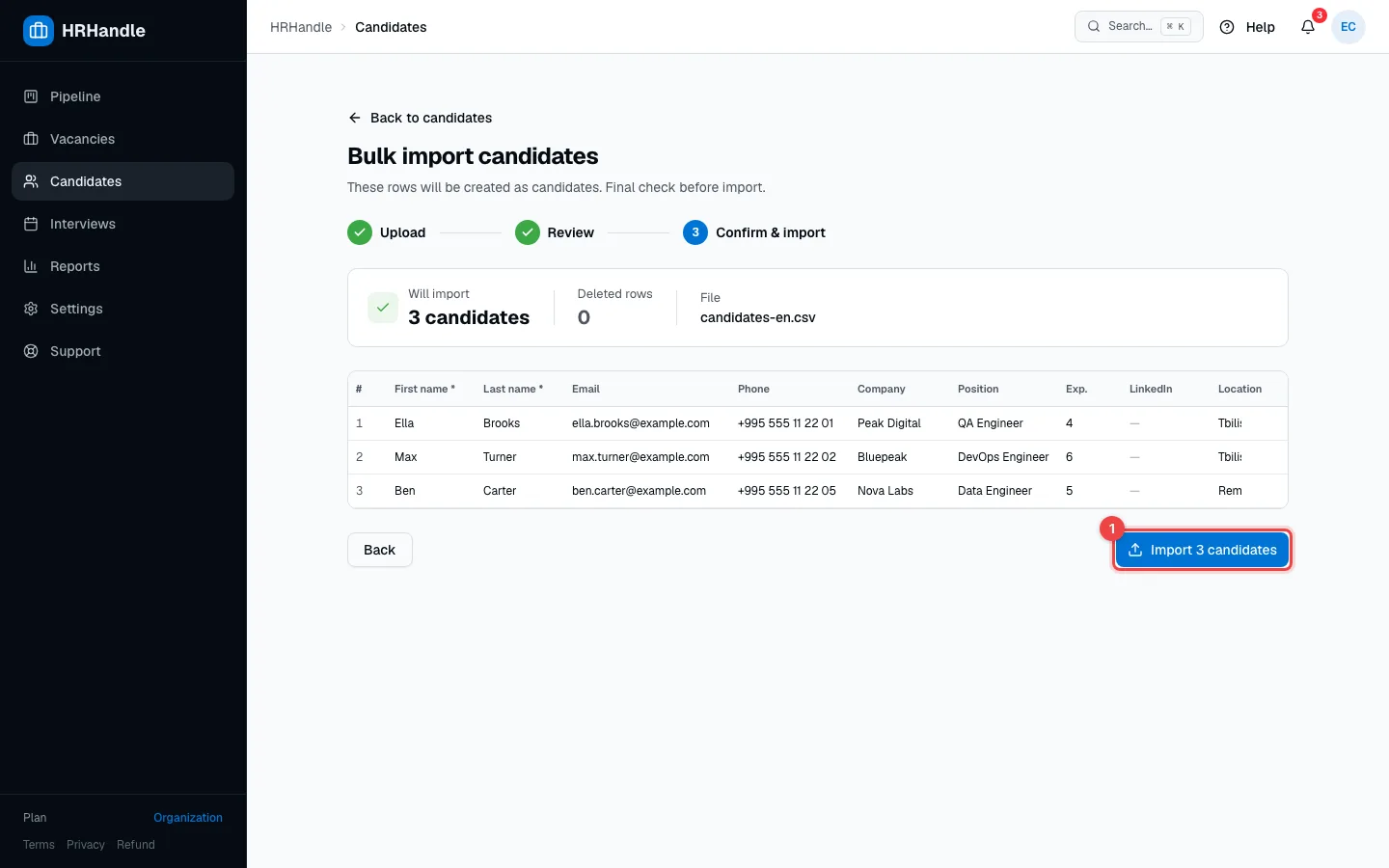
- Import 3 candidates — starts the import. The button shows how many candidates will be created.
The import runs in the background with a progress bar. You can close the window — it carries on.
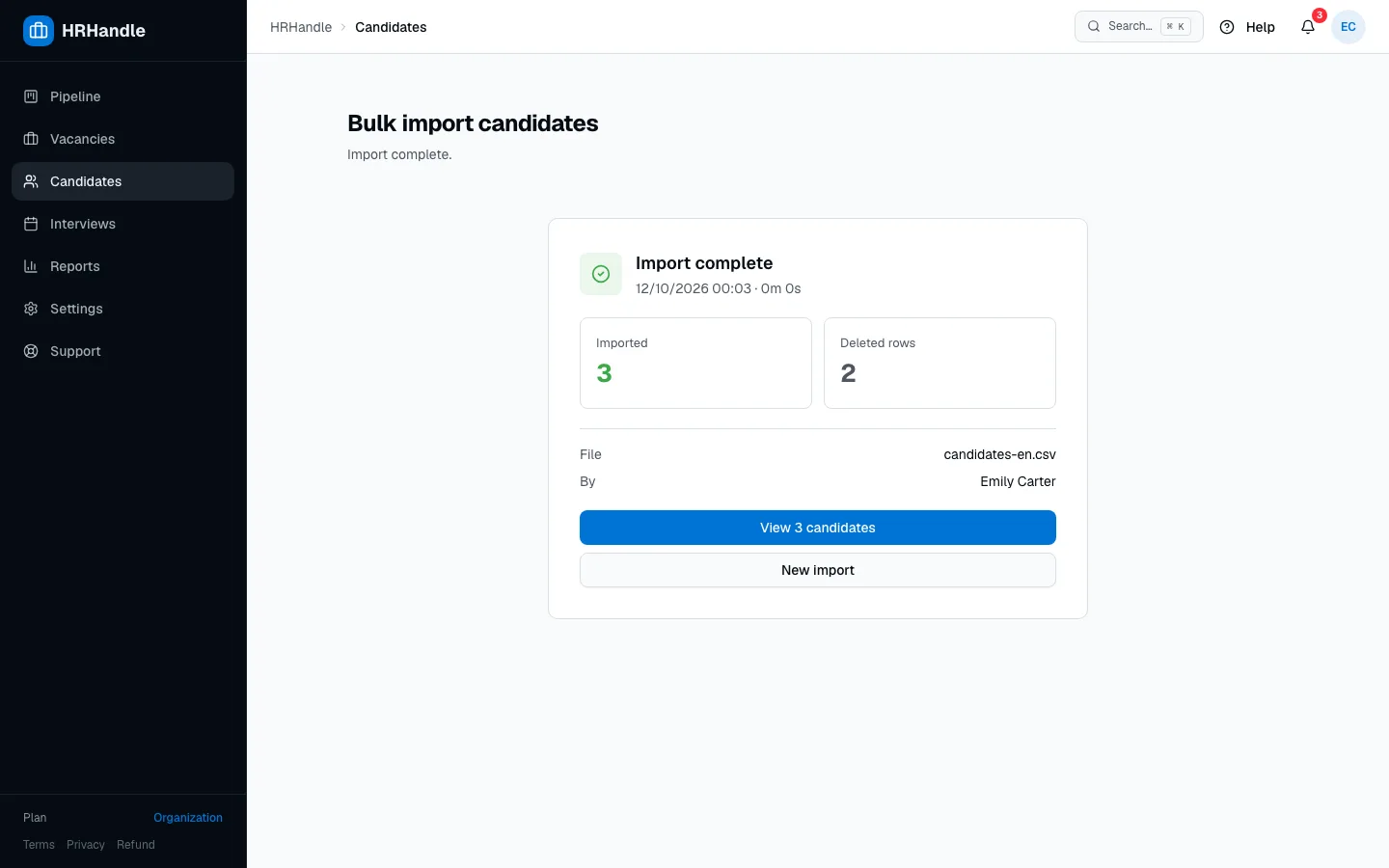
When it's done, you see how many candidates were imported and a button to view exactly those candidates.
Good to know
- Imported candidates aren't added to any vacancy. They start as Inactive in your candidate database until you add them to a vacancy.
- HRHandle never merges or updates existing candidates during an import — a duplicate is an error you fix in the review.
- Every imported candidate counts toward your plan's candidate limit.