Guide
The pipeline
Move candidates through the hiring stages on a board, and customize the stages.
The pipeline is where candidates move from application to hire. Open Pipeline in the sidebar to see the candidates of every open vacancy on one board, with a column for each stage.
The board
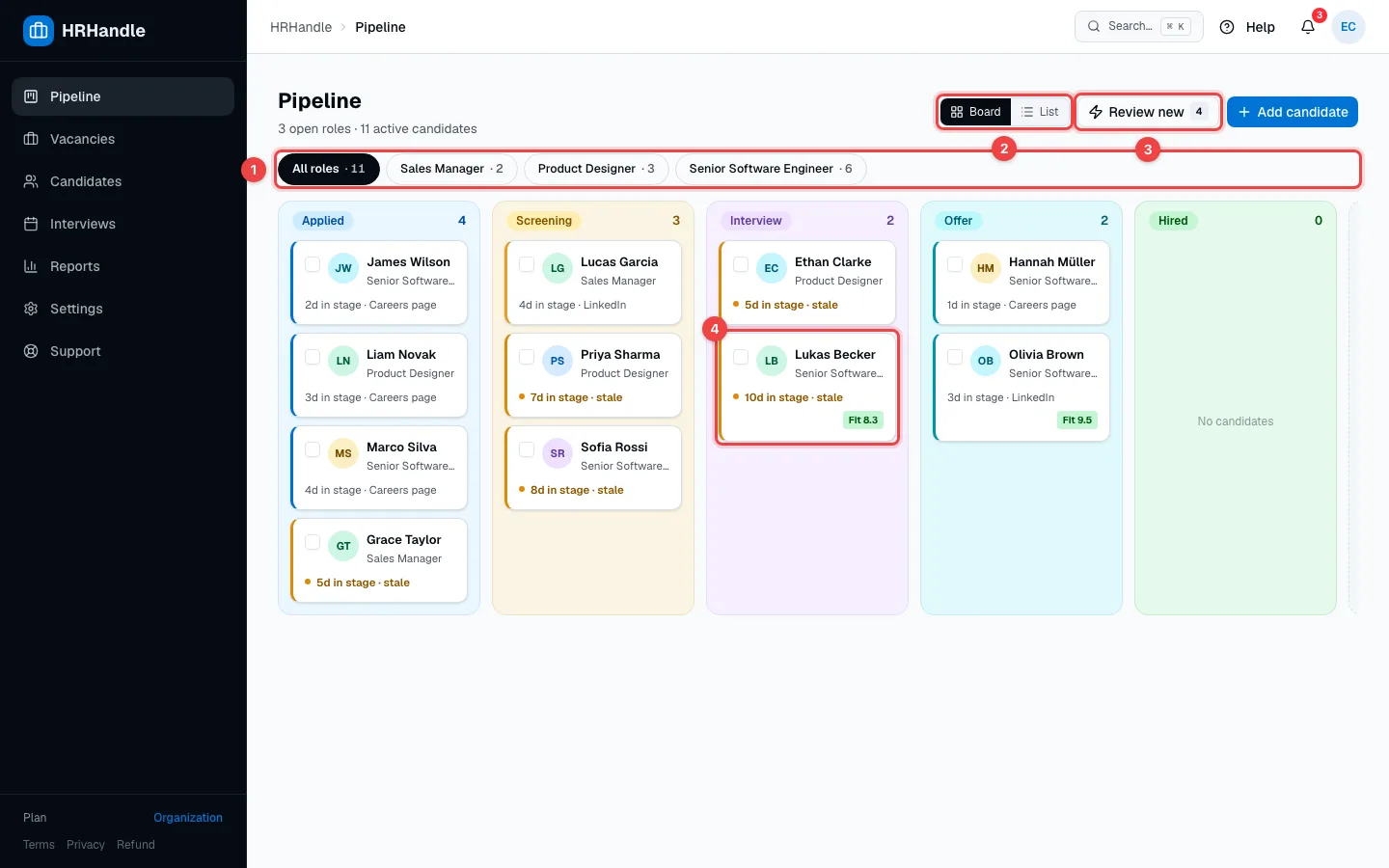
- Role filters — All roles shows everyone; click a vacancy to see only its candidates. The number is how many active candidates it has.
- Board / List — switch between the columns and a table.
- Review new — go through new applicants one by one (see below). The number shows how many are waiting.
- A candidate card — the name and current job, how long the candidate has been in this stage and where they came from. Fit 8.3 is the average of the team's assessments, out of 10 — see Assessments and scorecards. After 5 days in the same stage the card turns amber and says stale. Click the name to open the profile.
To move a candidate, drag the card to another column:
- Dropping it on Rejected opens the rejection dialog — see Reject candidates.
- Moving a candidate forward into Screening or Interview can also email them, if you've turned that email on — see Email templates.
- Moving a candidate to Hired notifies the owner and admins.
Closed outcomes
Rejected and withdrawn candidates leave the stage columns. Click the narrow strip at the right end of the board to fold them out.
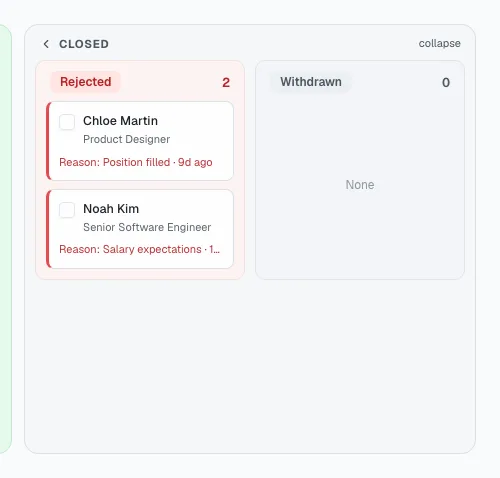
Each card shows the rejection reason and how long ago it happened. Click collapse to fold the group away again.
Act on several candidates at once
Tick the box on the cards you want to work with.
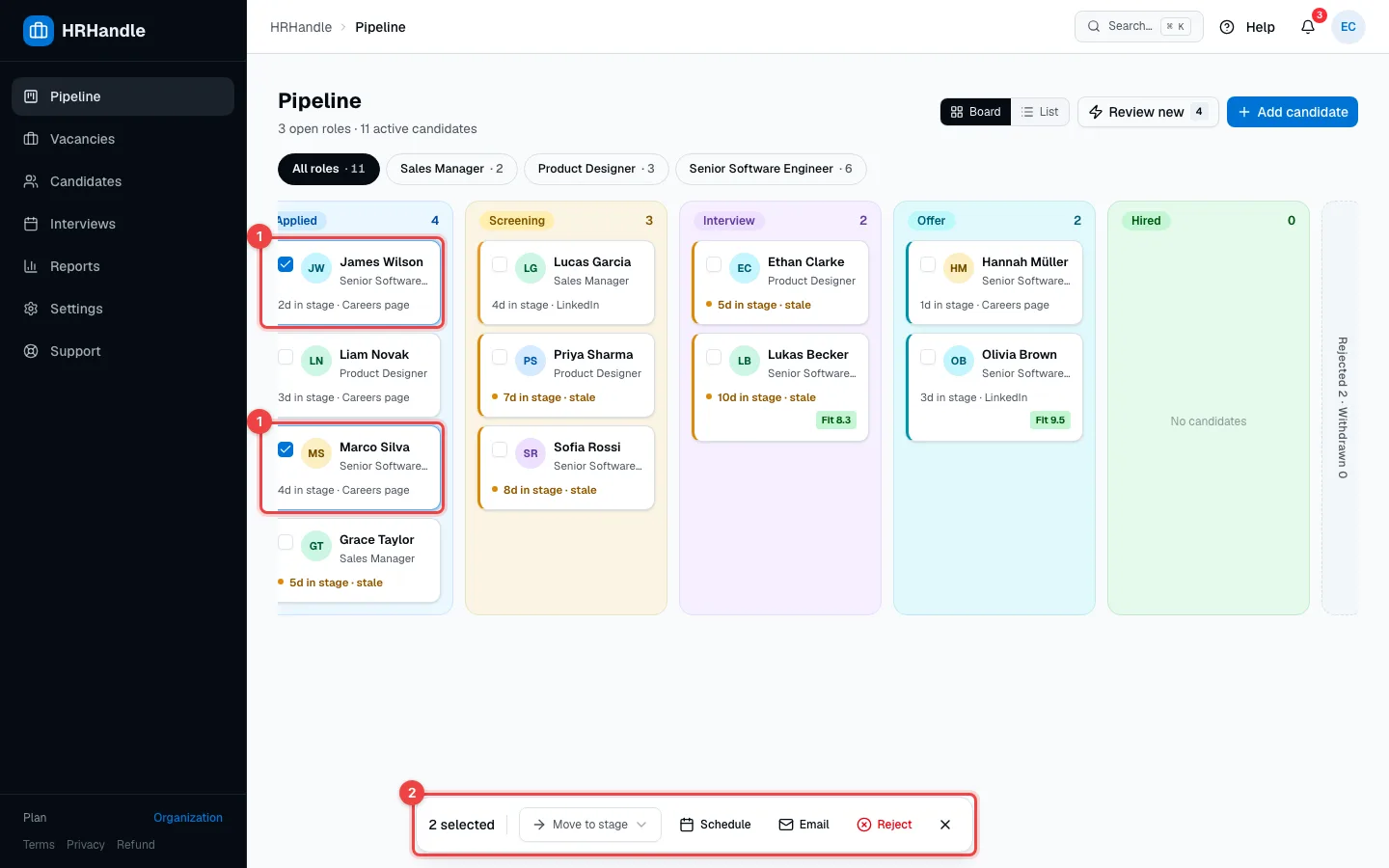
- Selected cards — tick or untick the box on a card.
- The action bar — Move to stage moves everyone to the stage you pick. Schedule books an interview (select exactly one candidate). Email opens your mail app with every selected candidate in BCC. Reject rejects them all in one go. × clears the selection.
The list view
List shows the same candidates as a table, grouped by stage — handy when the board gets long.
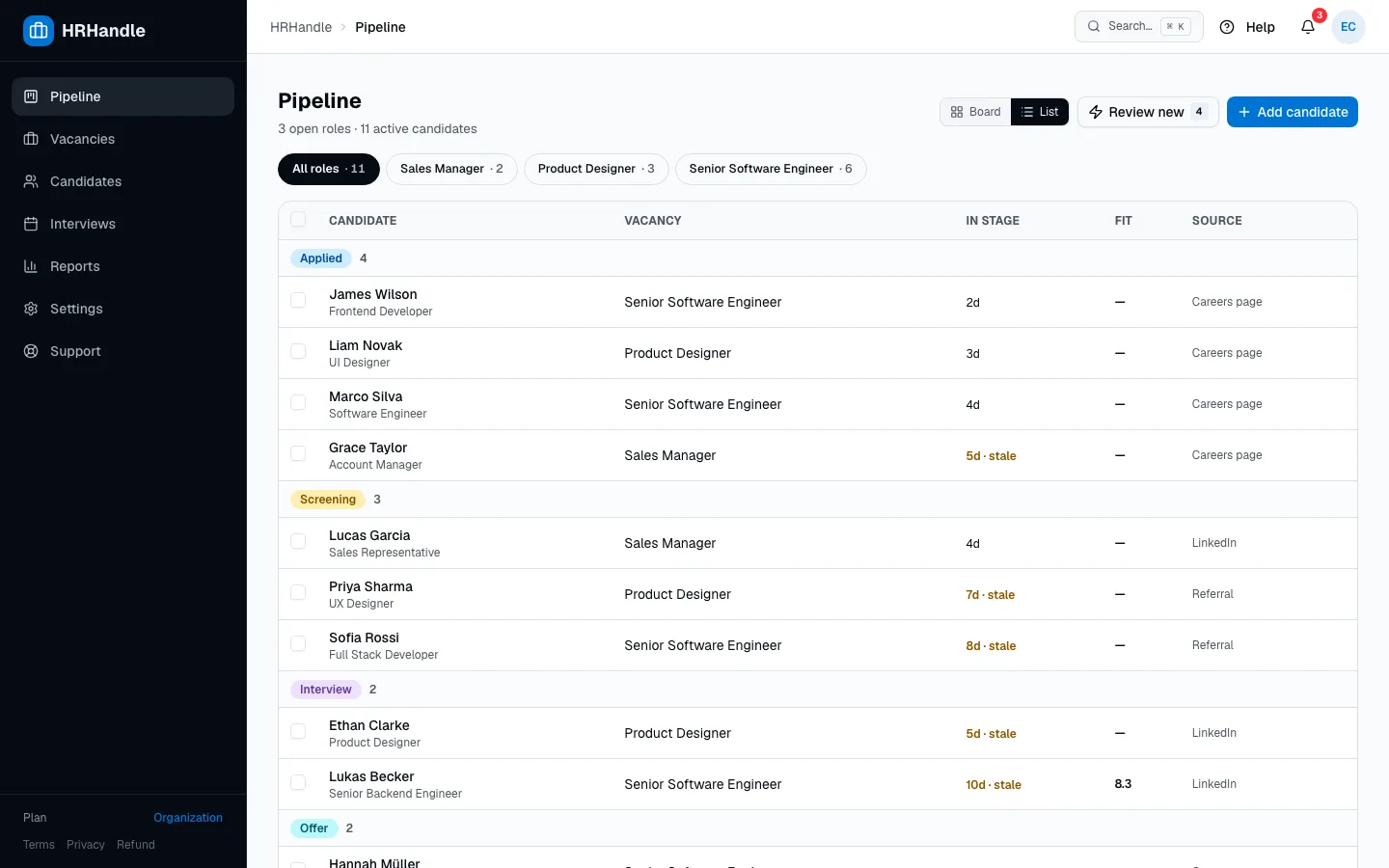
The checkboxes and the action bar work here too.
Review new applicants
Review new shows the applicants nobody has moved yet, one at a time, oldest first. It follows the role filter, so pick a vacancy first to review only its applicants.
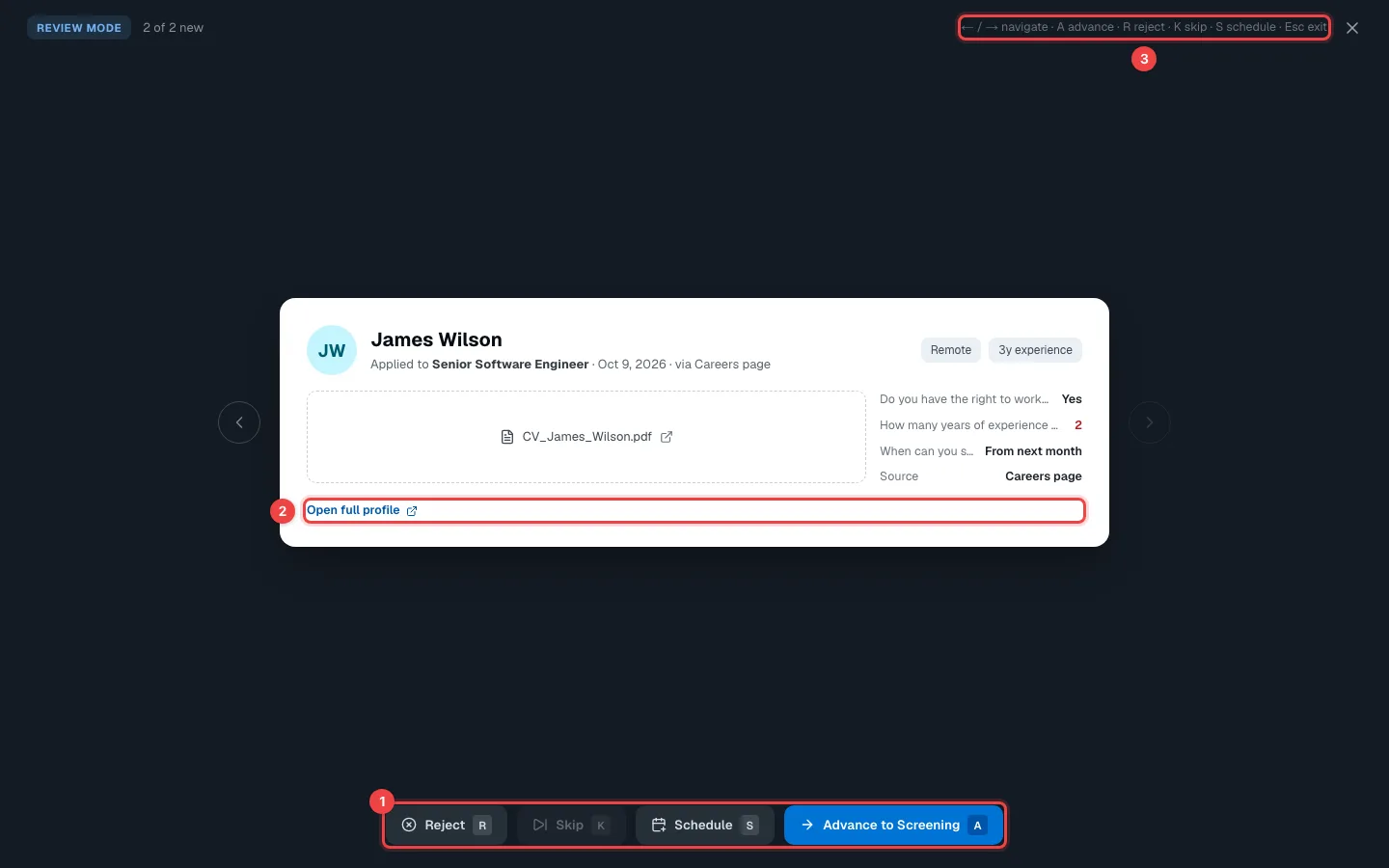
- Actions — Reject (R), Skip (K), Schedule an interview (S), or Advance the candidate to the next stage (A).
- Open full profile — leaves review mode and opens the candidate's profile.
- Shortcuts — ← and → move between applicants; Esc closes review mode.
The card shows the vacancy, when and how the candidate applied, their CV (click it to open it in a new tab) and their answers to the screening questions. An answer that fails a knockout question is highlighted.
Each vacancy's own board
Every vacancy also has its own board: open the vacancy and click View pipeline →. It works the same way, with that vacancy's own stages.
Set up your stages
Owners and admins choose the stages in Settings → Main pipeline.
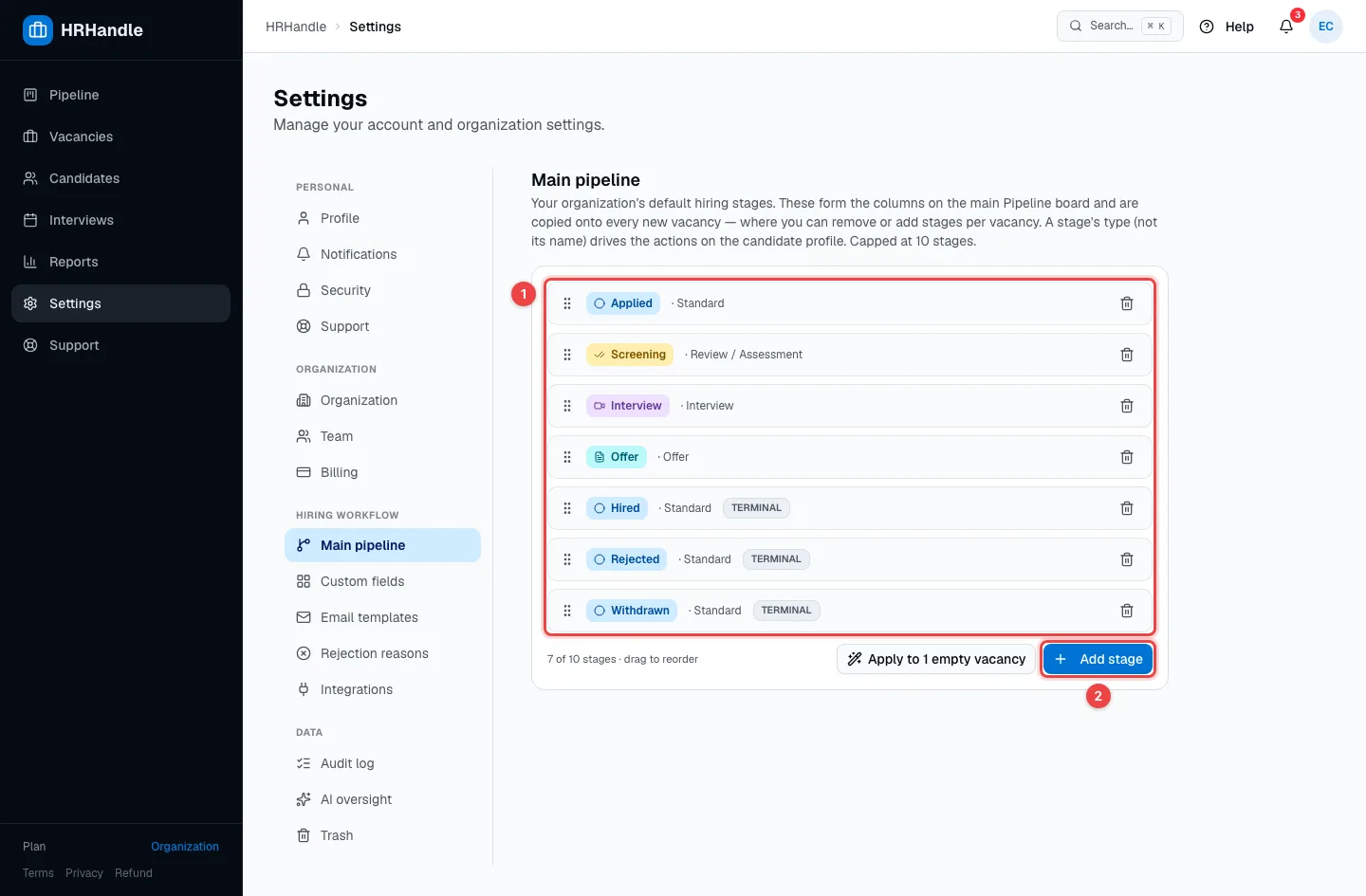
- The stages — in order. Drag a stage by its handle to reorder it, or click the bin to remove it.
- Add stage — give the stage a name and choose its type. Up to 10 stages.
A stage's type decides what the candidate profile offers at that stage:
| Type | On the candidate profile |
|---|---|
| Standard | Move the candidate and add notes. |
| Review / Assessment | The screening checks: the candidate's answers to the screening questions, with failed knockout questions flagged. |
| Interview | Schedule an interview, fill in a scorecard, give feedback. |
| Offer | Create and track an offer. |
Terminal stages — Hired, Rejected and Withdrawn — take a candidate out of the active pipeline.
New vacancies start with these stages, and each vacancy can then change its own (see The vacancy page). To give vacancies that have no applications yet the new set of stages, click Apply to … empty vacancies.