Guide
The candidate profile
Contact details, experience, documents, notes, activity and applications in one place.
Click a candidate's name anywhere — on the pipeline, in the candidate list or on a vacancy — to open their profile. It brings together everything about the person: their applications, what to do next, the team's assessments, their background and documents, and the full history of what happened. Previous candidate and Next candidate move through the list without going back.
The top of the profile
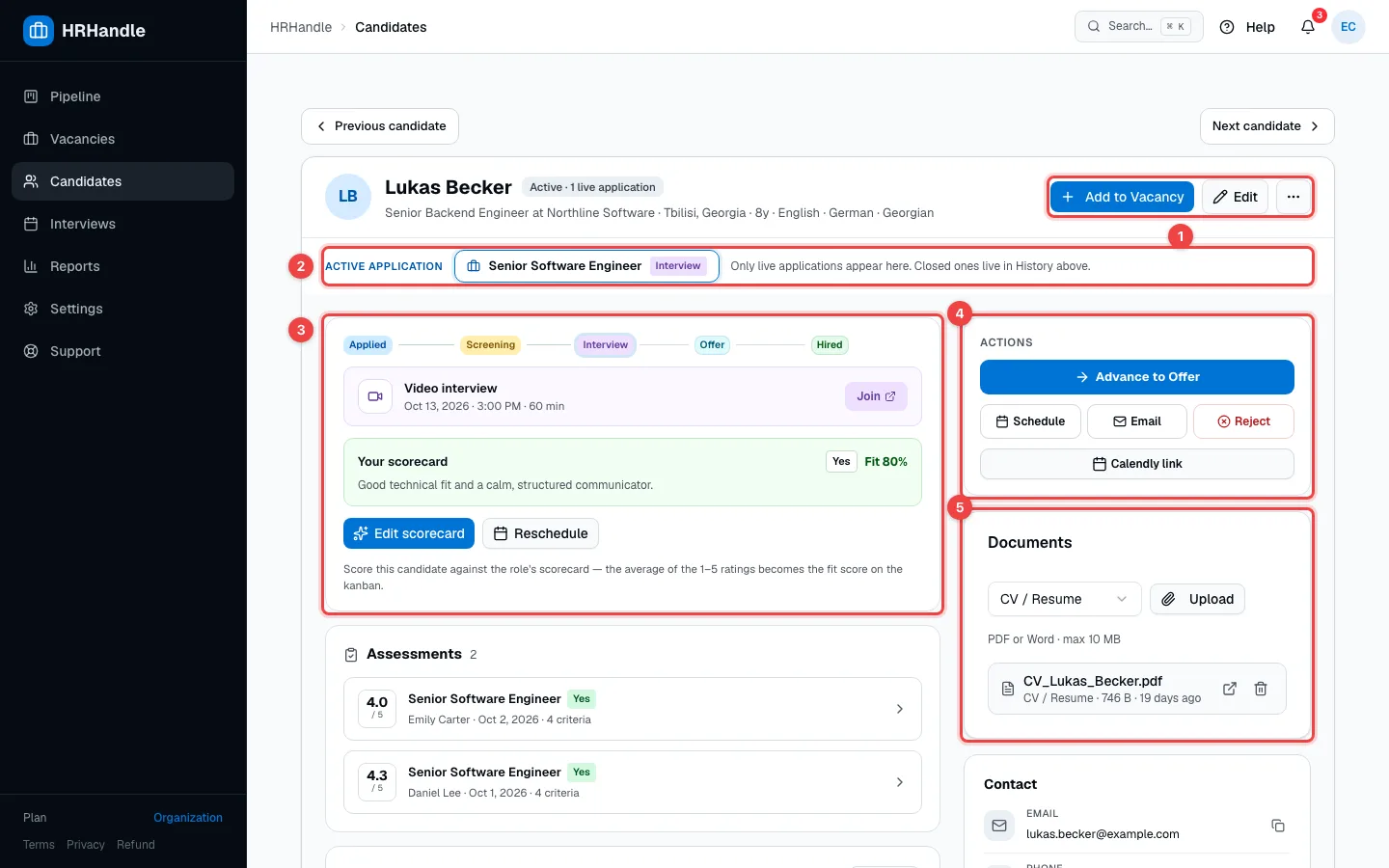
- Header actions — Add to Vacancy puts the candidate into another vacancy's pipeline. Edit changes their personal details. ⋯ holds Merge candidates and Delete candidate.
- Active application — if the candidate is in more than one vacancy, choose which one you're looking at. Closed applications are kept in the history.
- The stage card — where the candidate is (Applied → Screening → Interview → Offer → Hired) and what this stage needs from you. At the interview stage, for example, it shows the interview with a Join link, your scorecard, Edit scorecard and Reschedule. At the offer stage, it's where you write the offer.
- Actions — move the candidate on (for example Advance to Offer), Schedule an interview, send an Email or Reject them.
- Documents — CVs, cover letters and other files (PDF or Word, up to 10 MB). Choose the document type, click Upload, and open or delete files from the list.
Further down are the Assessments — every reviewer's scorecard with their score and recommendation (see Assessments and scorecards) — and the candidate's Experience and Education, which you can add to or edit. On the right, Contact has the email, phone and LinkedIn with copy buttons, and Details has the salary expectation, notice period, location, languages, source and the date they were added, together with your organization's own fields.
The status next to the name is set automatically:
| Status | Means |
|---|---|
| Active | The candidate has at least one open application. |
| Inactive | No open applications — for example after an import, or when every application has ended. |
| Hired | The candidate was hired for a vacancy. |
Notes and activity
The Activity feed shows everything that happened with the candidate, newest first.
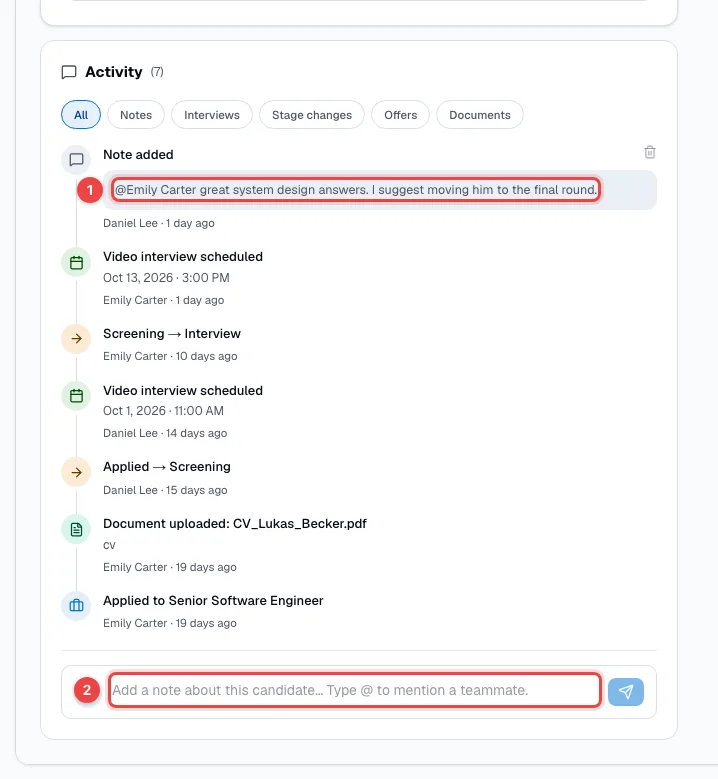
- A note with an @mention — notes are visible to your whole team. Mentioning someone sends them a notification.
- The note box — write a note and press the send button. Type @ and choose a teammate to mention them.
Use the filters above the feed — Notes, Interviews, Stage changes, Offers, Documents — to see just one kind of event.
Merge duplicates
When the same person ended up in HRHandle twice — for example they applied again with a personal email — merge the two profiles. Click ⋯ → Merge candidates.
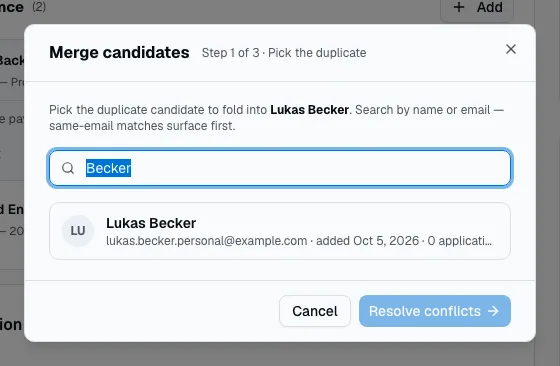
- Pick the duplicate — search by name or email; profiles with the same email are listed first.
- Resolve conflicts — where the two profiles differ, choose which value to keep.
- Confirm — the duplicate's applications, notes, documents, interviews and assessments move to this profile, and the duplicate disappears.
Changed your mind? For 30 days, the profile shows the merge with a Split back button that separates the two again.
Delete a candidate
⋯ → Delete candidate removes the candidate together with their applications. Owners and admins can restore them from the Trash within 30 days — see Audit log and trash.