Guide
AI features
How AI helps with CVs, job descriptions, scorecards and fit analysis, and how you stay in control.
HRHandle uses AI (Google's Gemini models) to save you typing and to give you a second opinion. The AI only suggests: nothing it writes is saved or sent until a person accepts it, and it never rejects or ranks anyone. It writes in your organization's content language.
Where HRHandle uses AI
| Where | What the AI does |
|---|---|
| Creating or editing a vacancy | Drafts the job description, responsibilities and requirements — see Create a vacancy. |
| The vacancy's Scorecard & interview tab | Suggests scorecard attributes and interview questions from the job description — see The vacancy page. |
| Adding a candidate | Reads the uploaded CV and fills in the form — see Add a candidate. |
| The job description | Checks the wording for phrases that may put candidates off (below). |
| The candidate profile | AI Fit Analysis, if your organization turns it on (below). |
Check a job description for inclusive language
When you create or edit a vacancy, open AI assist — check inclusive language under the description and click Run check.
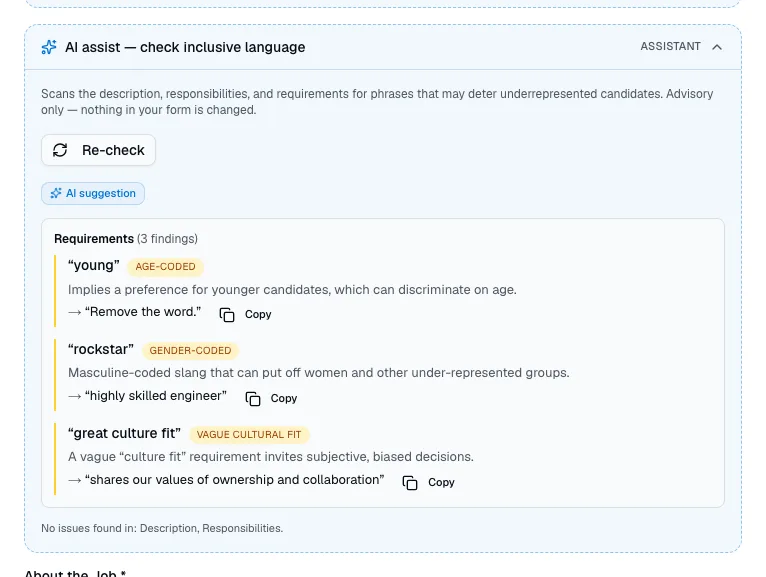
Each finding shows the phrase, the kind of concern — for example age-coded or gender-coded — why it may put candidates off, and a suggestion you can copy. The check never changes your text. Only the vacancy text is sent to the AI, never candidate data.
AI Fit Analysis
AI Fit Analysis compares a candidate's application with the vacancy's scorecard and shows the evidence for each criterion. It's off until the owner turns it on.
Turn it on
The owner opens Settings → Organization.
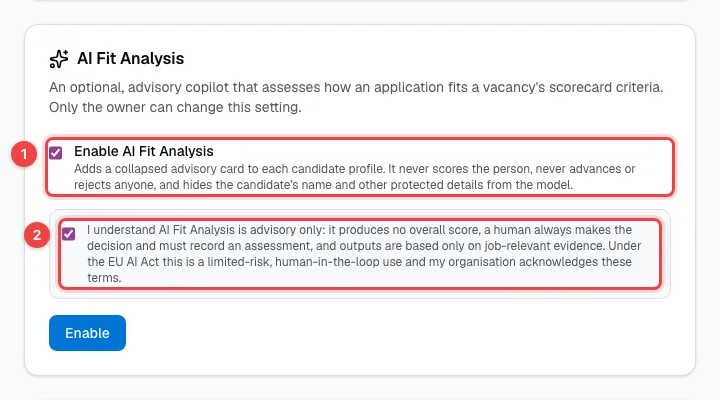
- Enable AI Fit Analysis — tick it.
- The acknowledgement — confirm that you understand the analysis is advisory: it gives no overall score, and a person always decides and records an assessment. Then click Enable.
While it's on, your apply form tells candidates that an AI assistant may help review applications and that a person always decides.
Read an analysis
On a candidate's profile, open AI fit analysis and click Run analysis. The result is usually ready within a minute.
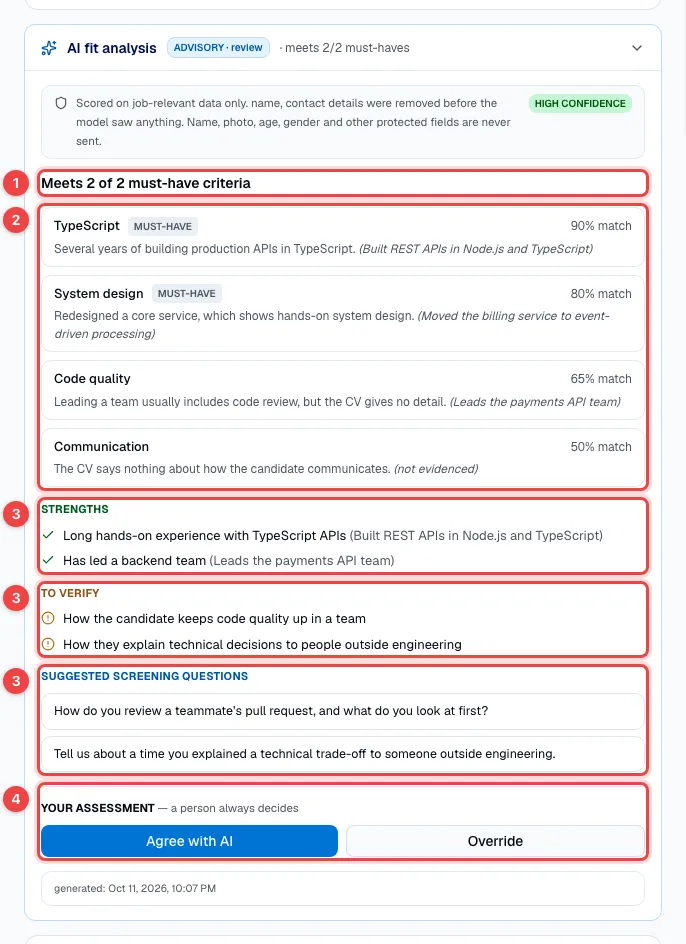
- Meets 2 of 2 must-have criteria — how many of the vacancy's must-have criteria the application meets. There's deliberately no overall score.
- The criteria — how well the application matches each one, with the evidence from the CV in brackets.
- Strengths, To verify and Suggested screening questions — what stands out, what to check, and questions that would settle it.
- Your assessment — Agree with AI or Override with a reason. The result carries no weight until a person has recorded an assessment.
The AI only sees job-relevant information: the candidate's name, contact details, photo, age, gender and other protected details are removed first. An organization can run up to 100 analyses a month.
AI oversight
Owners and admins can see how the analysis is used in Settings → AI oversight.
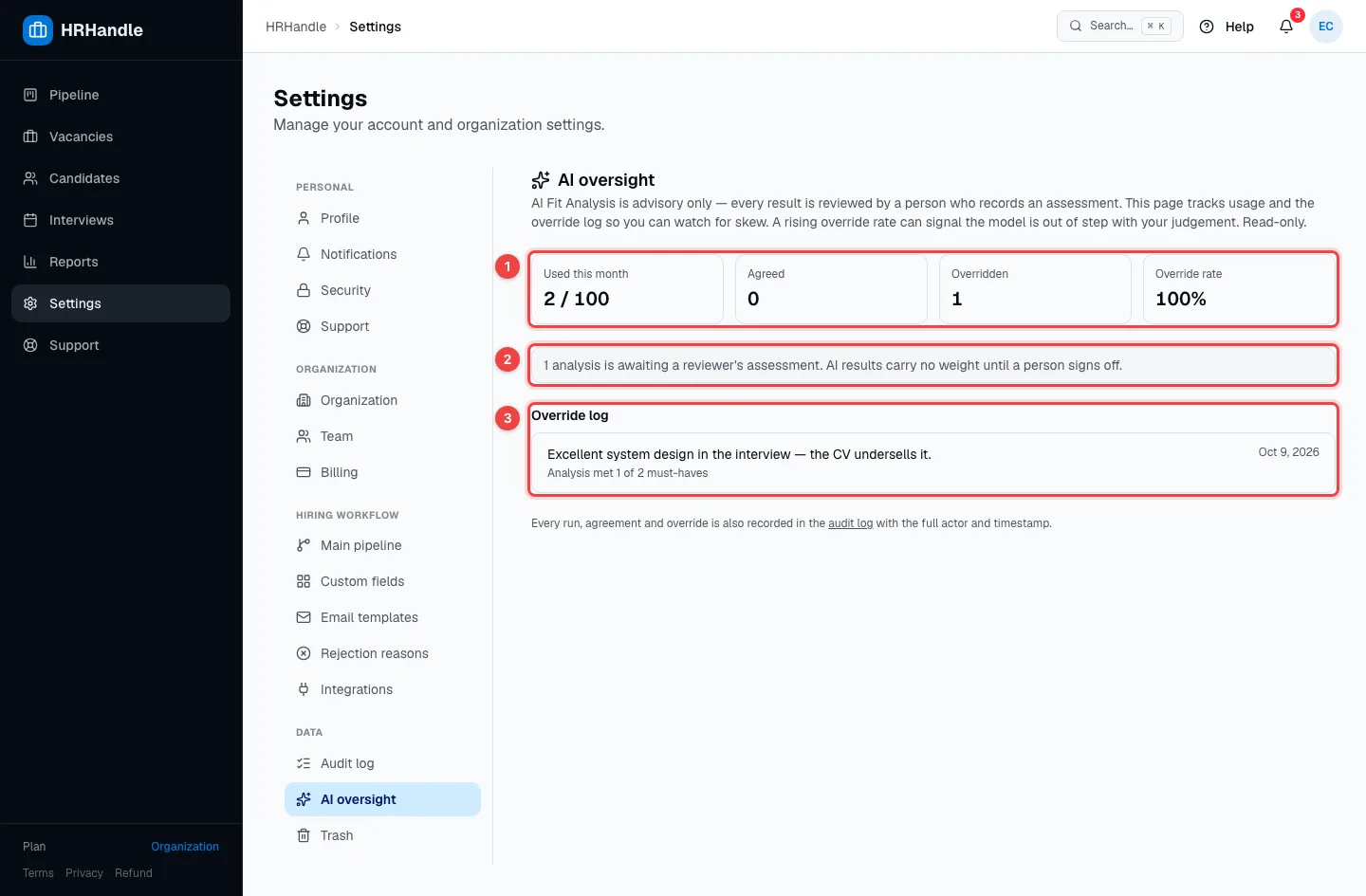
- Usage and agreement — analyses used this month out of 100, how many your team agreed with or overrode, and the override rate. A rising override rate can mean the AI is out of step with your judgement.
- Awaiting review — analyses nobody has assessed yet.
- Override log — every override with its reason.
Every analysis, agreement and override is also recorded in the audit log.