Guide
Assessments and questions
Add scoring criteria and open-ended questions per vacancy.
Each vacancy can carry its own assessment — open-ended questions and 1-to-10 scoring criteria. Reviewers fill them out per application, and an overall score is calculated automatically.
Two kinds of questions
| Type | What it looks like | What it is for |
|---|---|---|
| Questionary (text) | A textarea per question | Free-form notes — "Tell us about a recent system you designed", "Why are they a fit?" |
| Evaluation criteria (score) | A 1-to-10 number selector per criterion | Comparable scores — "TypeScript depth", "System design clarity", "Communication". An overall % is averaged across all score criteria. |
You can mix any number of both per vacancy.
Configure questions for a vacancy
Open a vacancy and switch to the Assessment tab. The page has two columns: Questionary on the left, Evaluation Criteria on the right.
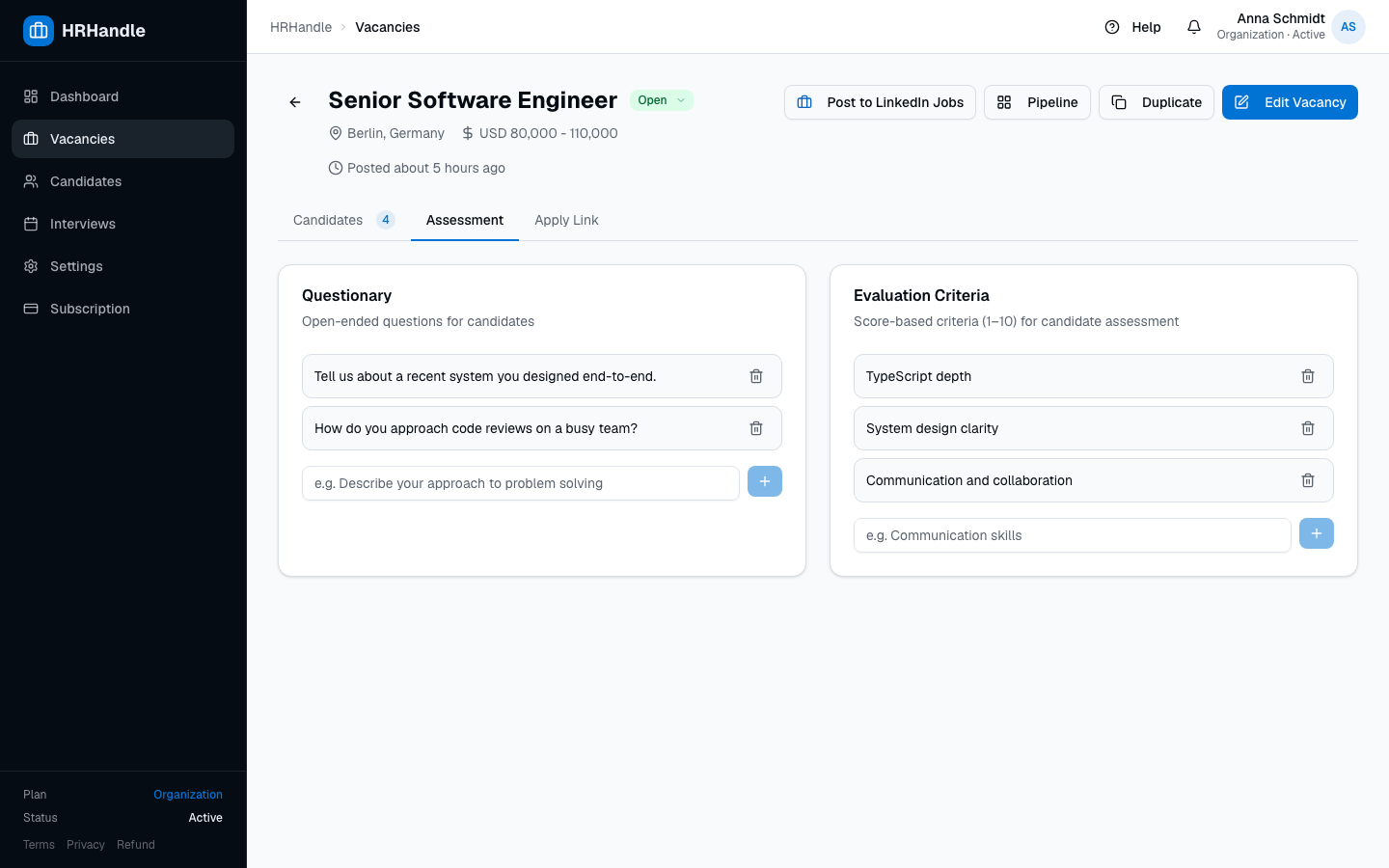
Add a question by typing it into the input below the existing list and pressing Add. Reorder by dragging; edit or remove via the inline controls.
Only owners and admins can edit the question list. Members can answer questions but not change them.
Answer per application
On the vacancy detail page, every application row has an expandable assessment form. Click the chevron on the left of a row to open it.
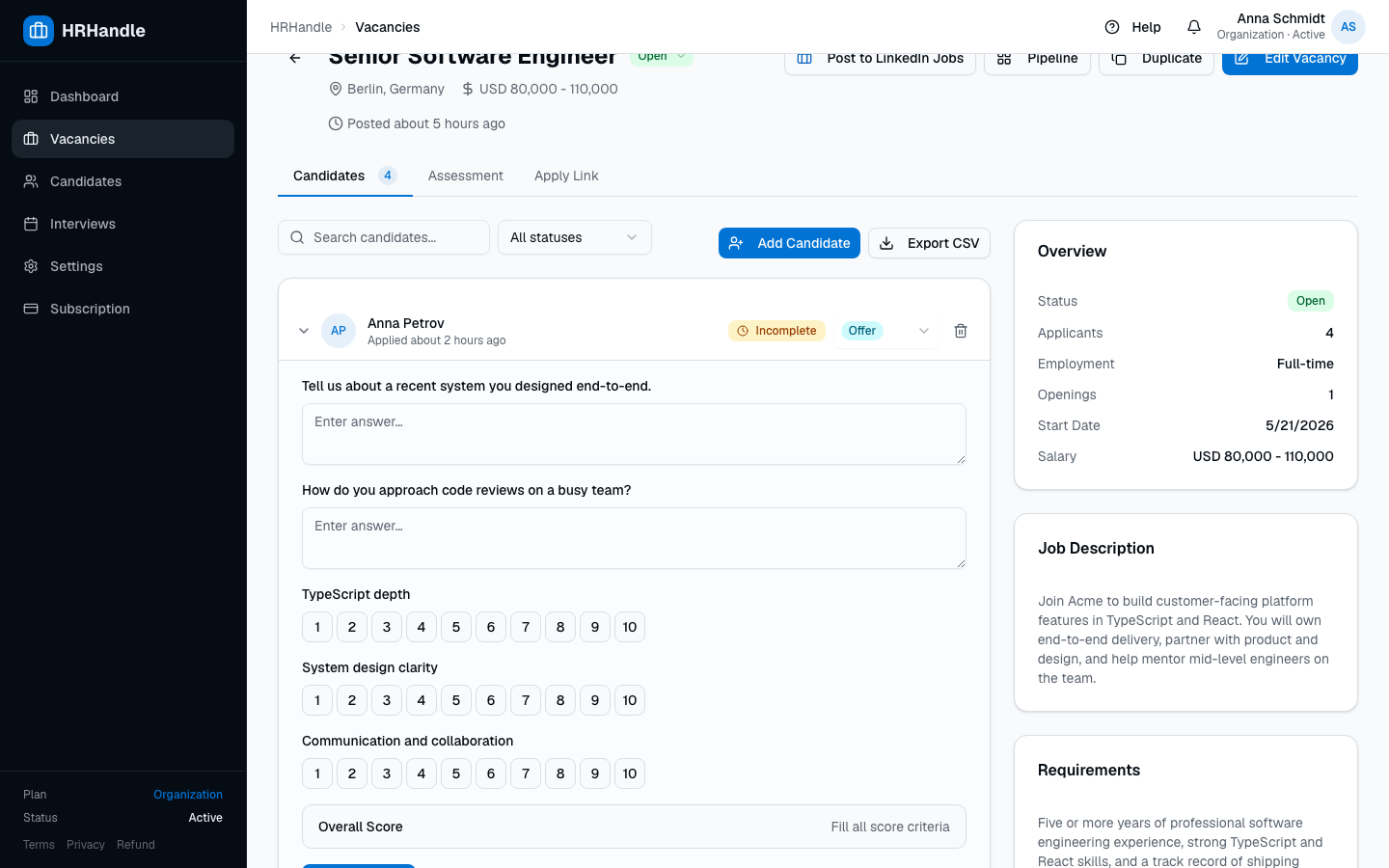
- Text answers save as you type.
- Score buttons highlight when selected. Click the same number again to unselect.
- The Overall Score at the bottom is
(sum of selected scores) ÷ (max possible)× 100. It only counts criteria where the reviewer picked a number.
Visible status badges
The application row shows the evaluation state at a glance:
| Badge | Meaning |
|---|---|
74% green | All score criteria filled. The number is the calculated overall score. |
Incomplete amber | The vacancy has score criteria, but at least one has no value yet. |
| No badge | The vacancy has no score criteria configured. |
Why score criteria help
When several team members review the same candidate, free-form notes are hard to compare. A 1-to-10 scoring rubric gives you:
- A single number on each card to sort and filter by
- Comparable evaluations across multiple reviewers
- A clear paper trail of why a hiring decision was made
Use the questionary for the nuance ("how did they explain it?"); use the criteria for the comparable signal.